
Maintenance
Cash Drawer
CDS
- [ENG] Price of each item does not appear on the CDS screen
- [ENG] Price Display Not Showing on CDS Screen (Android)
- [ENG] Price Display Does Not Appear on the CDS Screen (iOS)
- [Malay] Harga setiap item Tidak Keluar pada skrin CDS
- [Malay] Paparan Harga Tidak Keluar pada skrin CDS (Android)
- [Malay] Paparan Harga Tidak Keluar pada skrin CDS (iOS)
Printer
- [ENG] Printer Prints Receipts Slowly / Prints Strange Font
- [ENG] Printer Prints Unclearly / Blurry / Blank
- [Malay] Printer: Combine/ Separate Order
- [Malay] Printer Mencetak Resit Dengan Perlahan / Mencetak Font Pelik
- [Malay] Printer Mencetak Dengan Tidak Jelas / Kabur / Blur / Kosong
- [ENG] Printer: Combine or Separate Order
- [ENG] Turn On Master Copy
- [ENG] Restart Printer
- [ENG] Printer: Remove and Add
- [ENG] Printer: Test Print
- [ENG] Printer: Add ‘tagging’ On ‘itemize printing’
- [ENG] Printer Disconnected
- [ENG] Printer: How to check the SKAB on Cloud
- [Malay] Printer: Bagaimana untuk semak SKAB pada Cloud
- [Malay] Hidupkan Master Copy
- [Malay] Hidupkan Semula Printer (Restart Printer)
- [Malay] Test Print pada Printer
- [Malay] Buang dan tambah printer (Remove and Add Printer)
- [Malay] Tambah ‘tagging’ pada ‘itemize printing’
- [Malay] Printer Disconnected
- [Malay] Printer Cetak Resit Tidak Diperlukan/ Cetak Tanpa Henti
- [ENG] Printer Prints Receipt Unnecessarily or Prints Non-stop
- Show Remaining Articles (1) Collapse Articles
Waiter Apps
Report
- Articles coming soon
Router
General
Slurp! CDS
Getorders App
Slurp! Central 2
Printer 2.0
Slurp!Cloud 2
- How To Create Discount
- How to Create a Payment Method in Slurp Cloud
- How to Create a Preset Reason in Slurp Cloud
- How to Create Charges in Slurp Cloud
- How to Create Taxes in Slurp Cloud
- How to Create Other Payment Methods in Slurp Cloud
- How to Create an API Access Token in Slurp Cloud
- How to Create a Discount with Time Availability in Slurp Cloud
e-Invoice
Slurp! FAQ
- Articles coming soon
Slurp! Inventory Retails
Slurp! Waiter Android
Slurp! Waiter iOS
Ipad
Payment Integration
How to Generate Static QR V2
This article will guide you on how to generate the new version of QR Static.
Notes:
1. Make sure to activate getorders.app V2 Module in Slurp! Central.
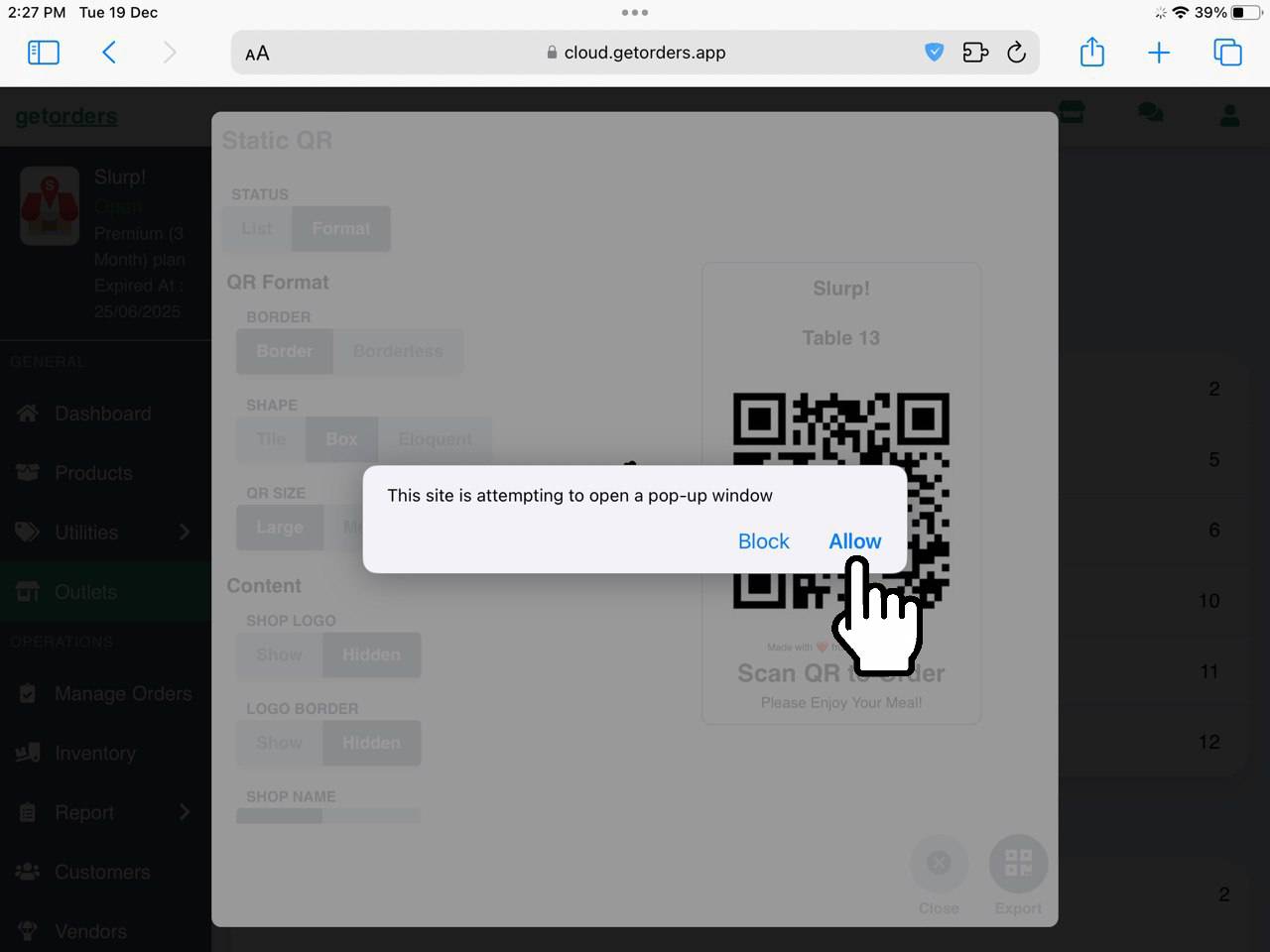
2. Make sure to always allow “Pop-Ups Blocked” in your browser to display pdf viewer.
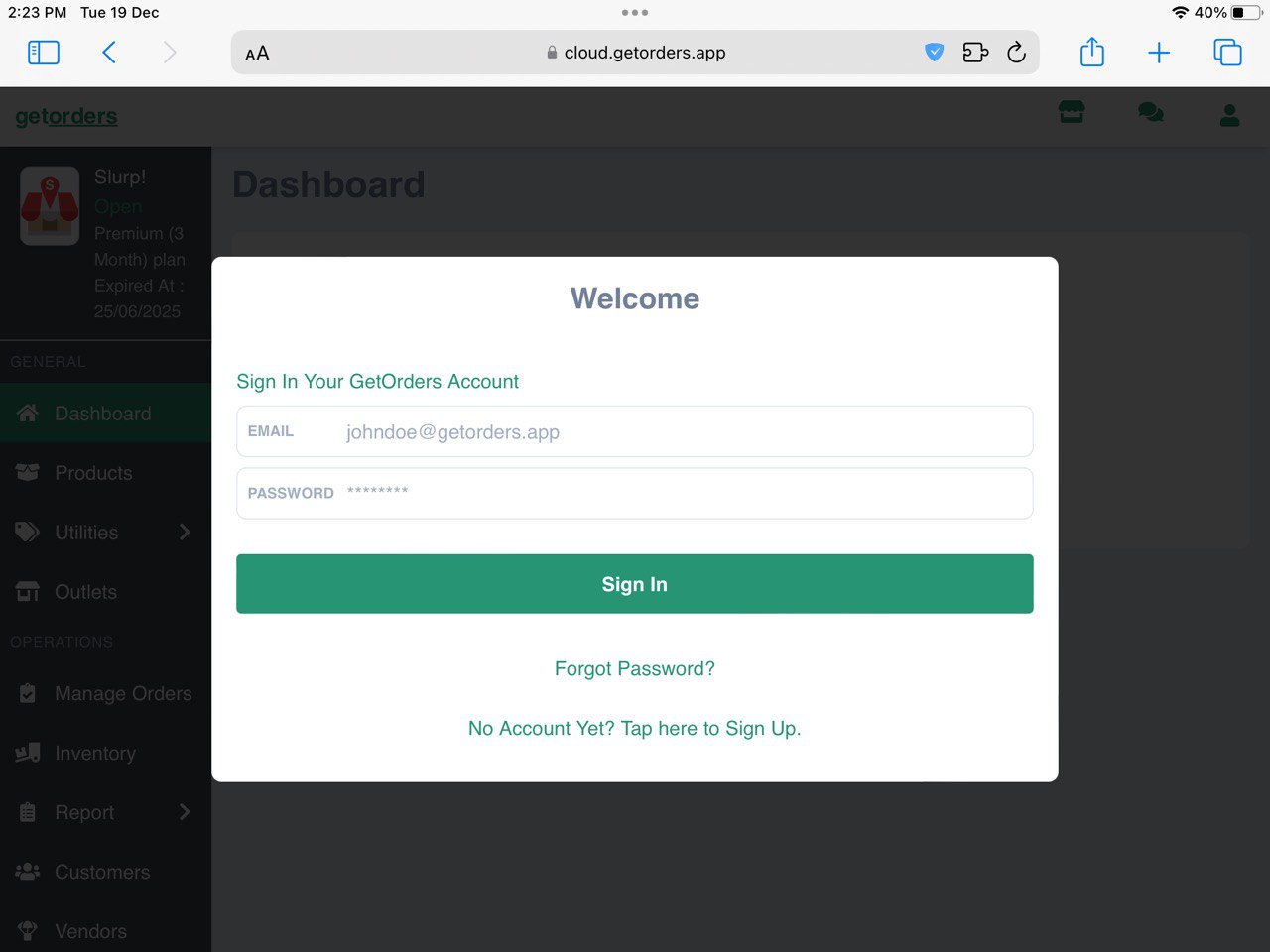
Step 1: Login to cloud.getorders.app
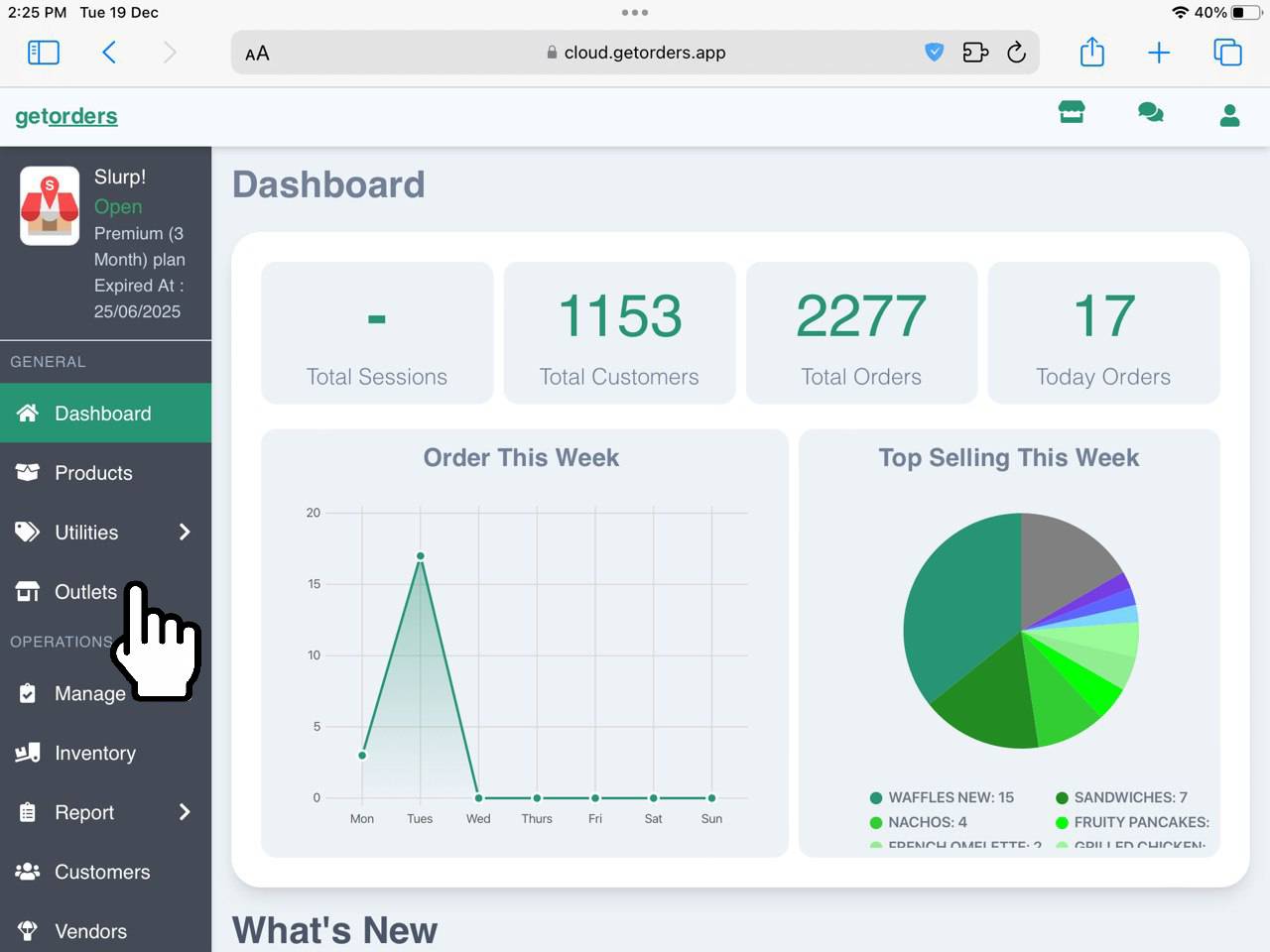
Step 2: Click Outlets
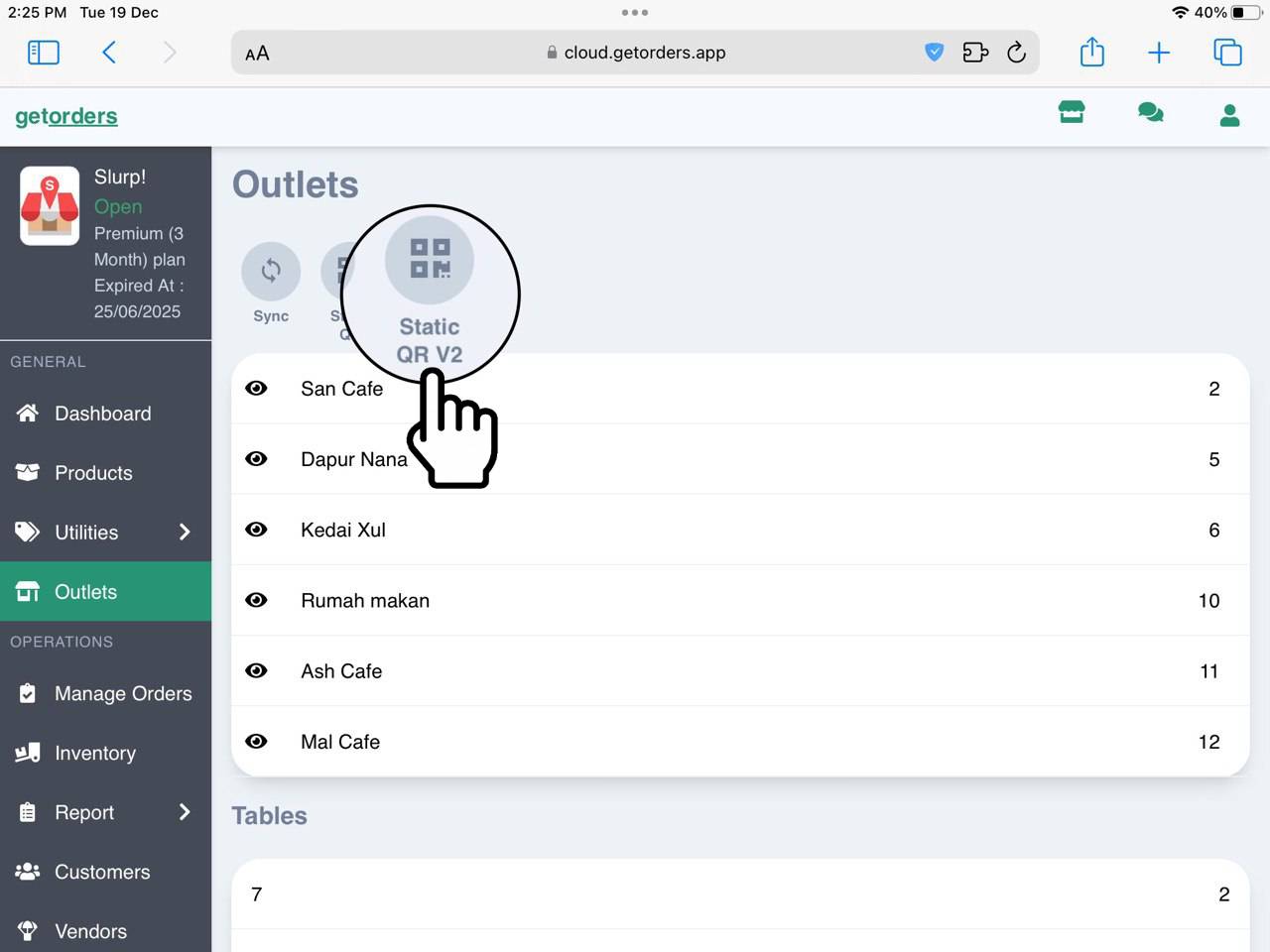
Step 3: Click Static QR V2 button.
Step 4: Select your Outlet Name
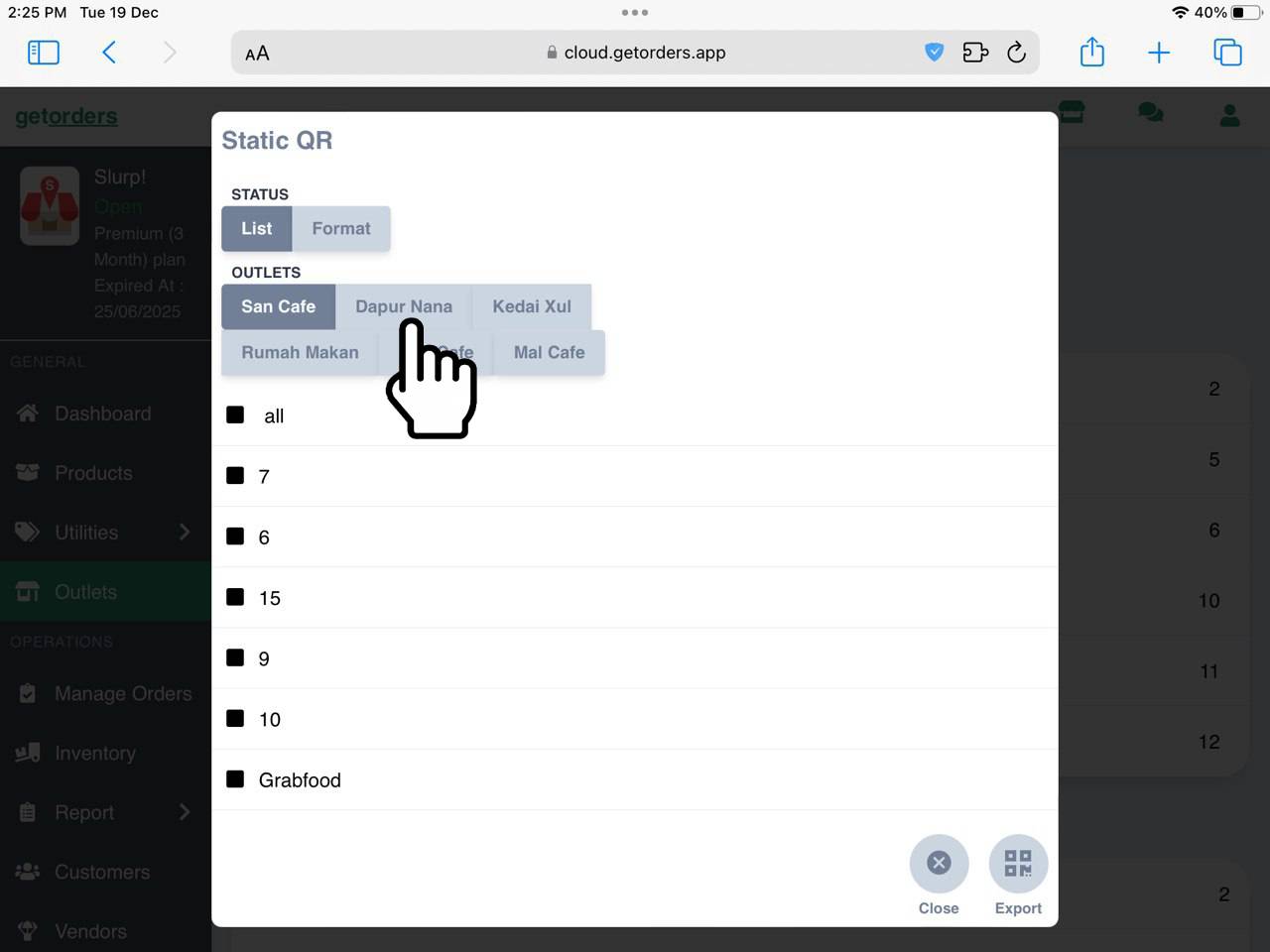
Step 5: Click on Format button
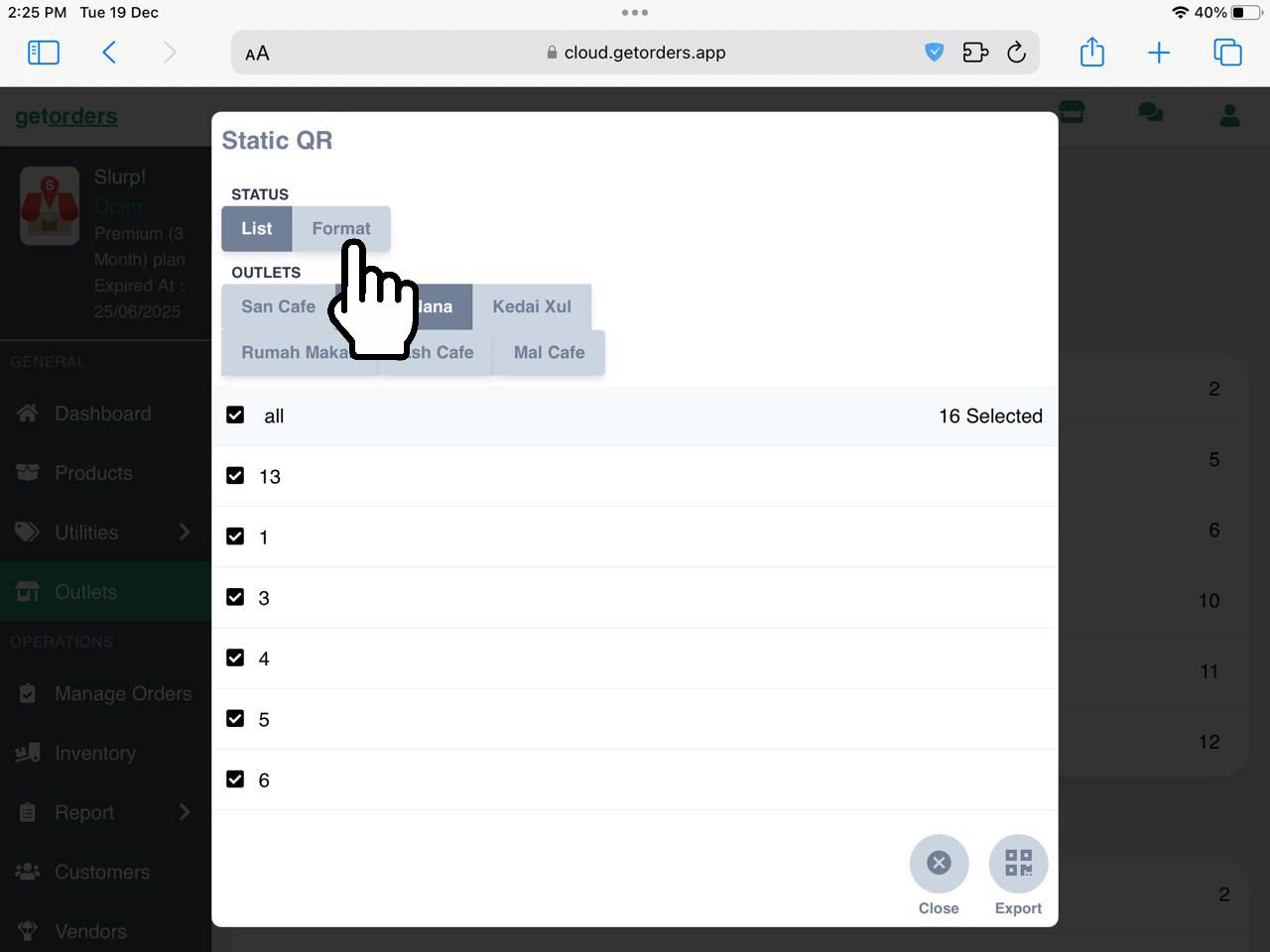
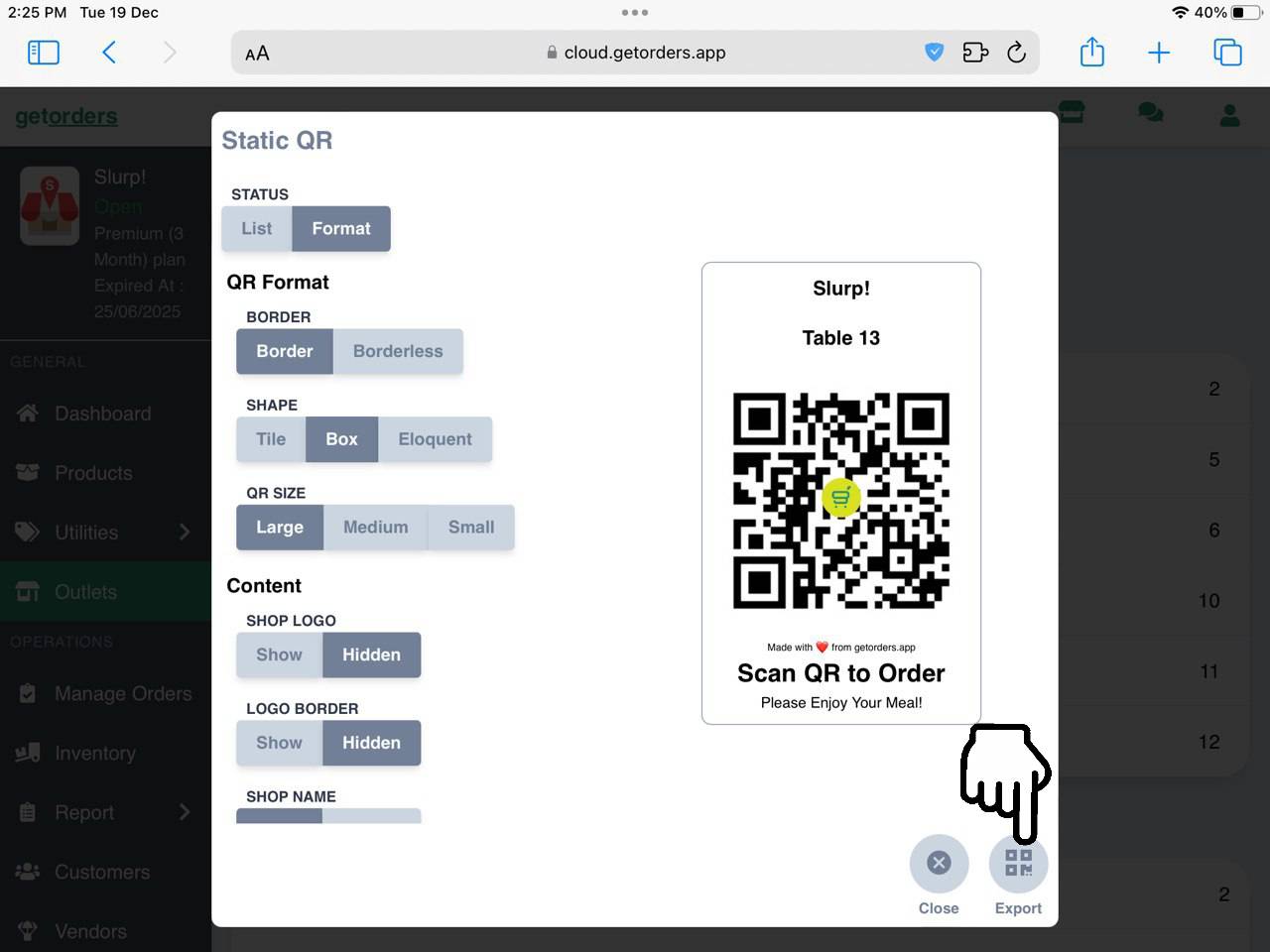
Step 6: Customize your QR to display, then click Export button.
Step 7: Please make sure your Browser (Safari, Chrome, Mozilla, etc.) to allow pop-up window. This is to display the Static QR page.
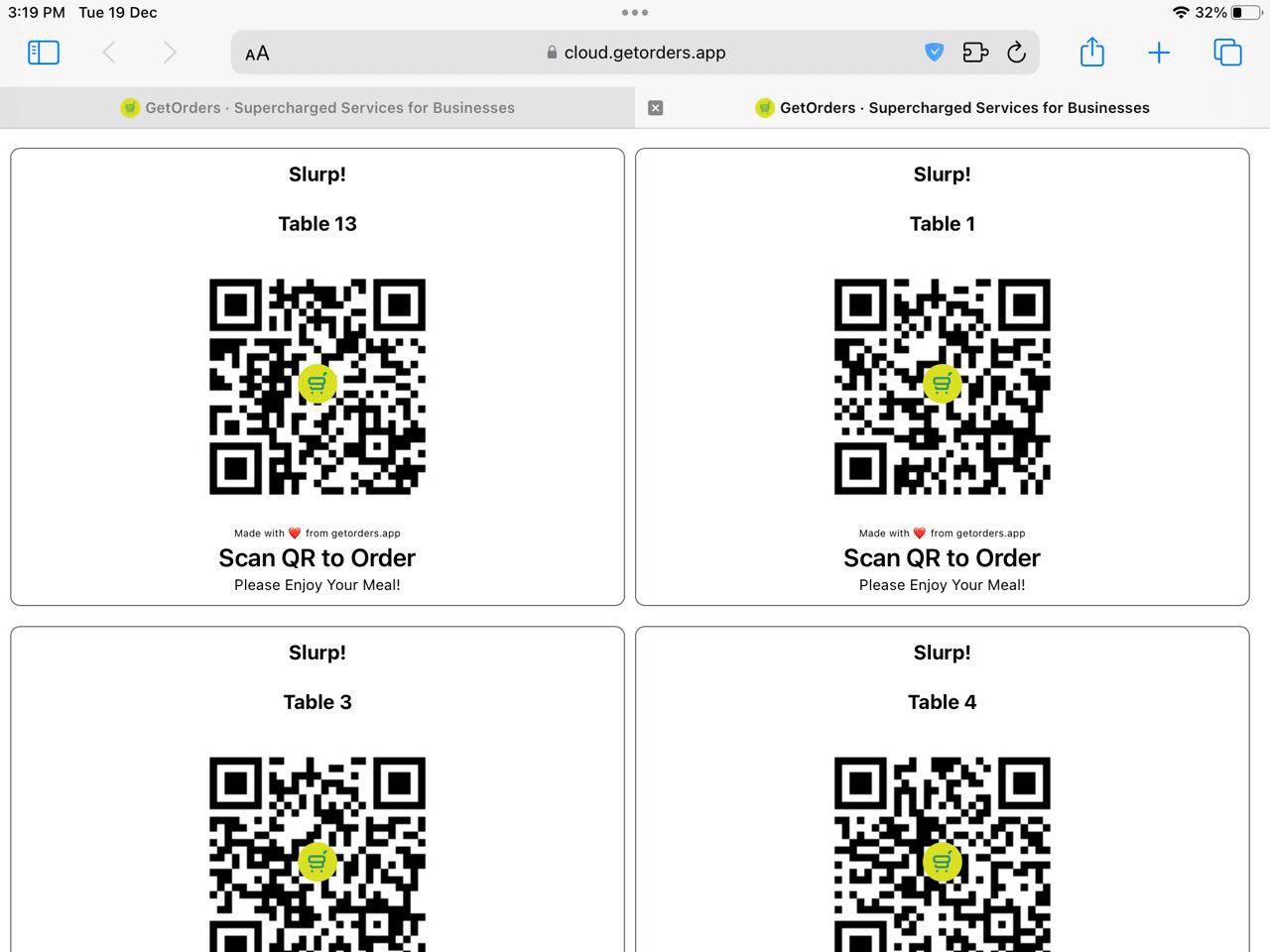
Step 8: Save your Static QR V2 in PDF file and you can proceed on printing and put the QR on your dine in Table.
Do not hesitate to contact our support team for further assistance on Whatsapp (01156654761).