Maintenance
Cash Drawer
CDS
- [ENG] Price of each item does not appear on the CDS screen
- [ENG] Price Display Not Showing on CDS Screen (Android)
- [ENG] Price Display Does Not Appear on the CDS Screen (iOS)
- [Malay] Harga setiap item Tidak Keluar pada skrin CDS
- [Malay] Paparan Harga Tidak Keluar pada skrin CDS (Android)
- [Malay] Paparan Harga Tidak Keluar pada skrin CDS (iOS)
Printer
- [ENG] Printer Prints Receipts Slowly / Prints Strange Font
- [ENG] Printer Prints Unclearly / Blurry / Blank
- [Malay] Printer: Combine/ Separate Order
- [Malay] Printer Mencetak Resit Dengan Perlahan / Mencetak Font Pelik
- [Malay] Printer Mencetak Dengan Tidak Jelas / Kabur / Blur / Kosong
- [ENG] Printer: Combine or Separate Order
- [ENG] Turn On Master Copy
- [ENG] Restart Printer
- [ENG] Printer: Remove and Add
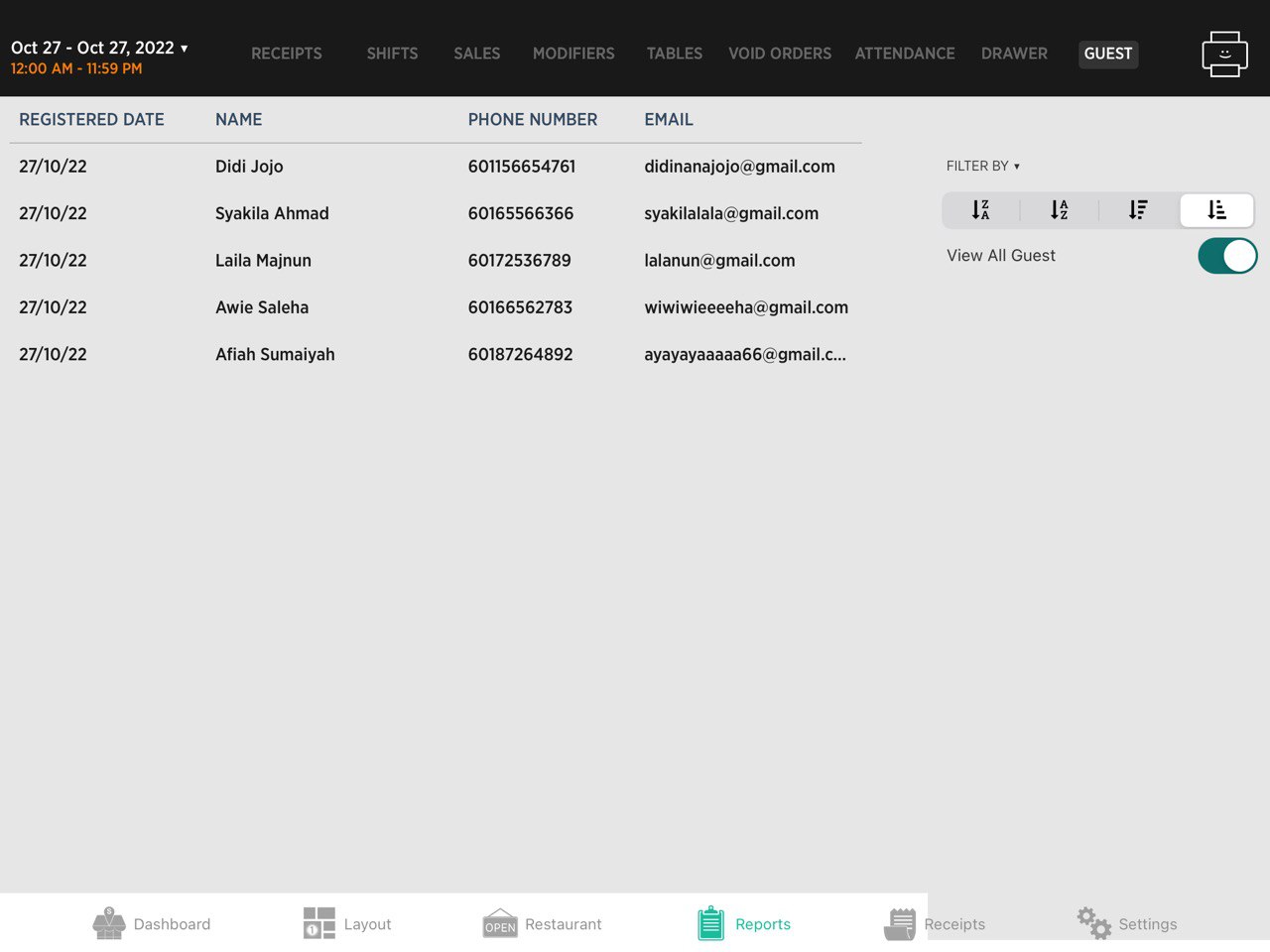
- [ENG] Printer: Test Print
- [ENG] Printer: Add ‘tagging’ On ‘itemize printing’
- [ENG] Printer Disconnected
- [ENG] Printer: How to check the SKAB on Cloud
- [Malay] Printer: Bagaimana untuk semak SKAB pada Cloud
- [Malay] Hidupkan Master Copy
- [Malay] Hidupkan Semula Printer (Restart Printer)
- [Malay] Test Print pada Printer
- [Malay] Buang dan tambah printer (Remove and Add Printer)
- [Malay] Tambah ‘tagging’ pada ‘itemize printing’
- [Malay] Printer Disconnected
- [Malay] Printer Cetak Resit Tidak Diperlukan/ Cetak Tanpa Henti
- [ENG] Printer Prints Receipt Unnecessarily or Prints Non-stop
- Show Remaining Articles (1) Collapse Articles
Waiter Apps
Report
- Articles coming soon
Router
General
Slurp! CDS
Getorders App
Slurp! Central 2
Printer 2.0
Slurp!Cloud 2
- How To Create Discount
- How to Create a Payment Method in Slurp Cloud
- How to Create a Preset Reason in Slurp Cloud
- How to Create Charges in Slurp Cloud
- How to Create Taxes in Slurp Cloud
- How to Create Other Payment Methods in Slurp Cloud
- How to Create an API Access Token in Slurp Cloud
- How to Create a Discount with Time Availability in Slurp Cloud
e-Invoice
Slurp! FAQ
- Articles coming soon
Slurp! Inventory Retails
Slurp! Waiter Android
Slurp! Waiter iOS
Ipad
Payment Integration
Guest Information in Slurp! Central
Hi there, this page will explain how will Guest Information be recorded in Slurp! Central.
*Important Notes: This is only applicable for Slurp! Central POS.
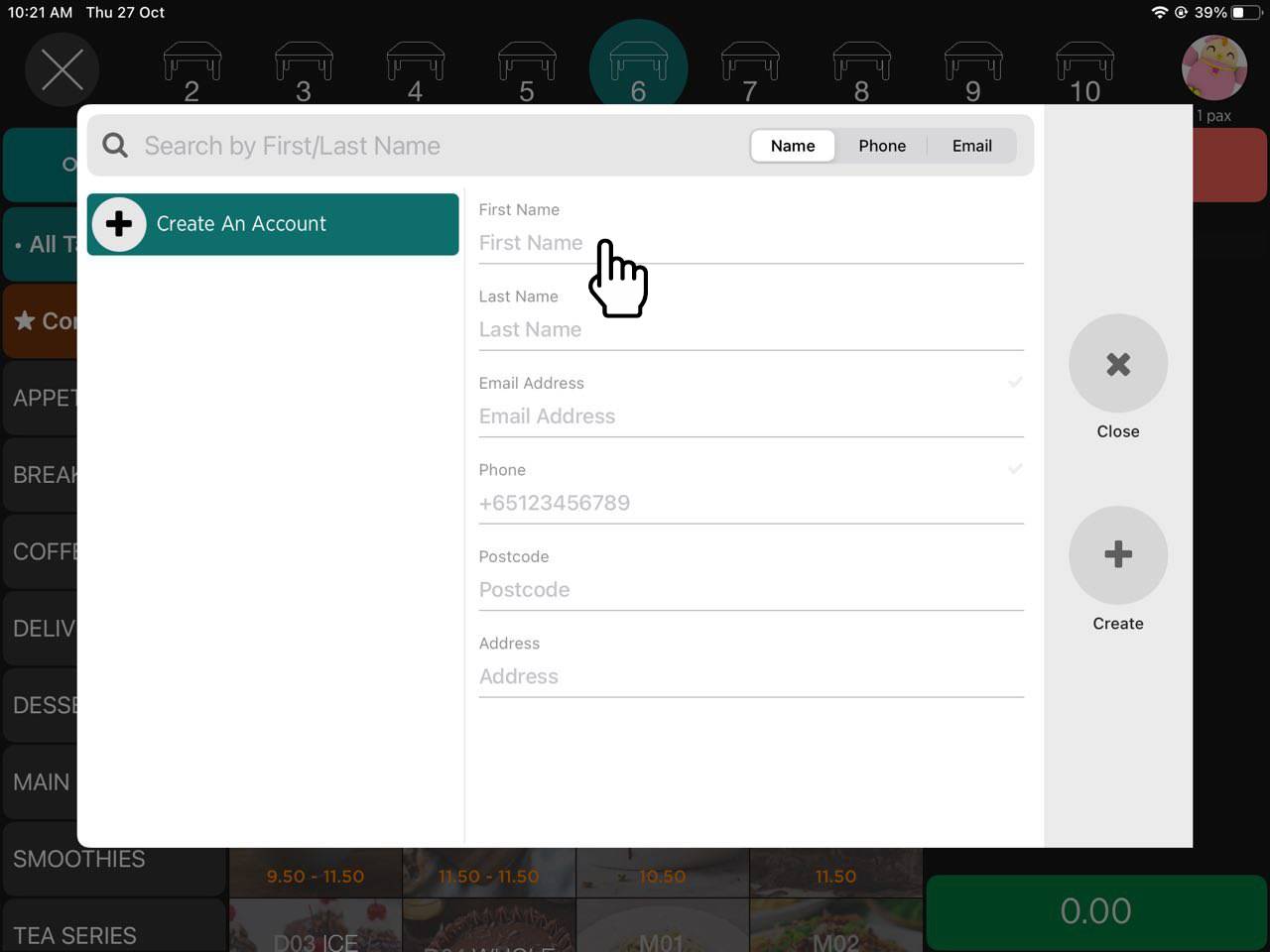
It is COMPULSORY to key in Guest Name AND Phone Number to save the guest info.
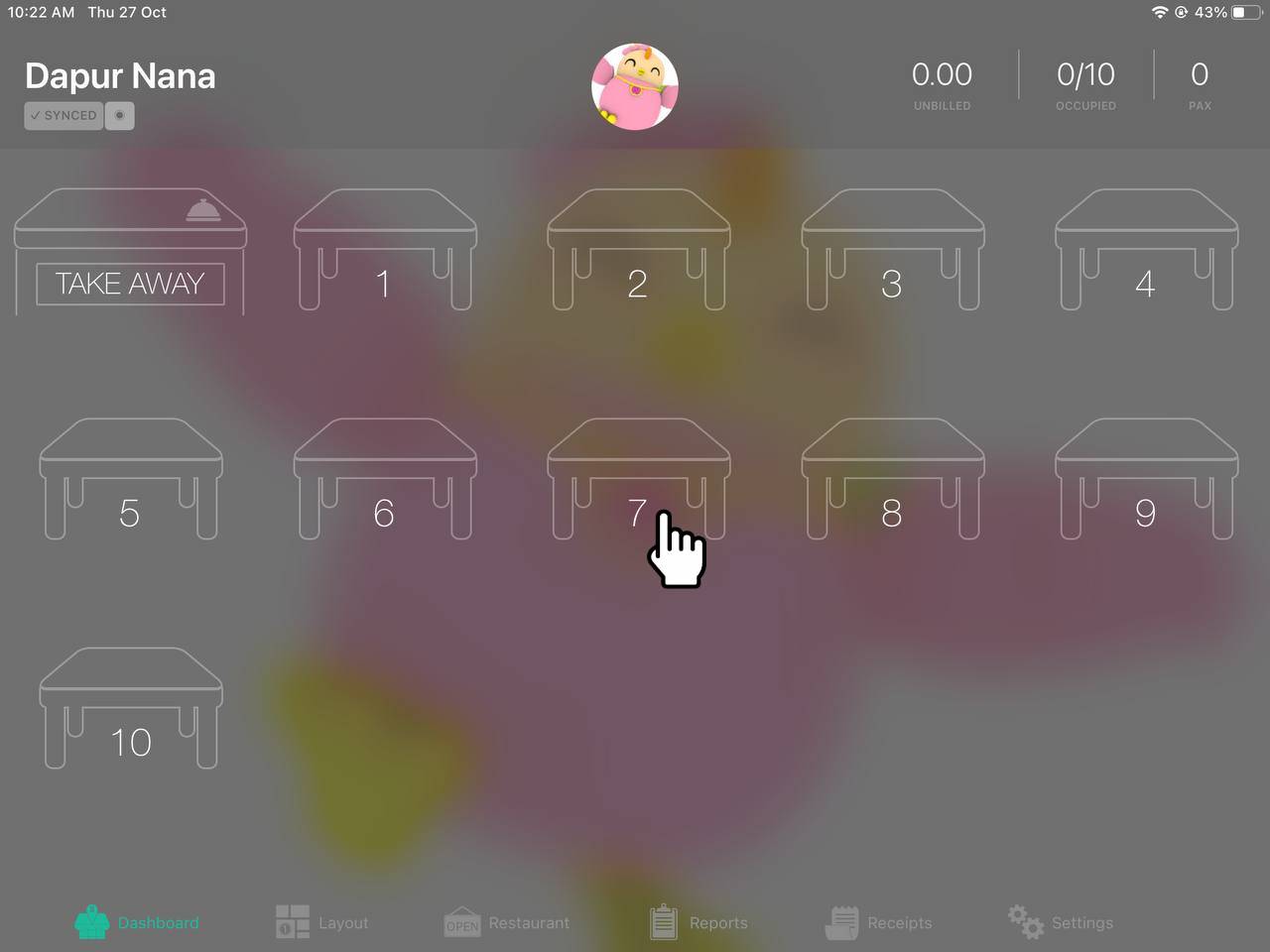
1. Firstly, you need to make an order from Slurp! Central Dashboard by clicking on the table. For Example: Table 7.
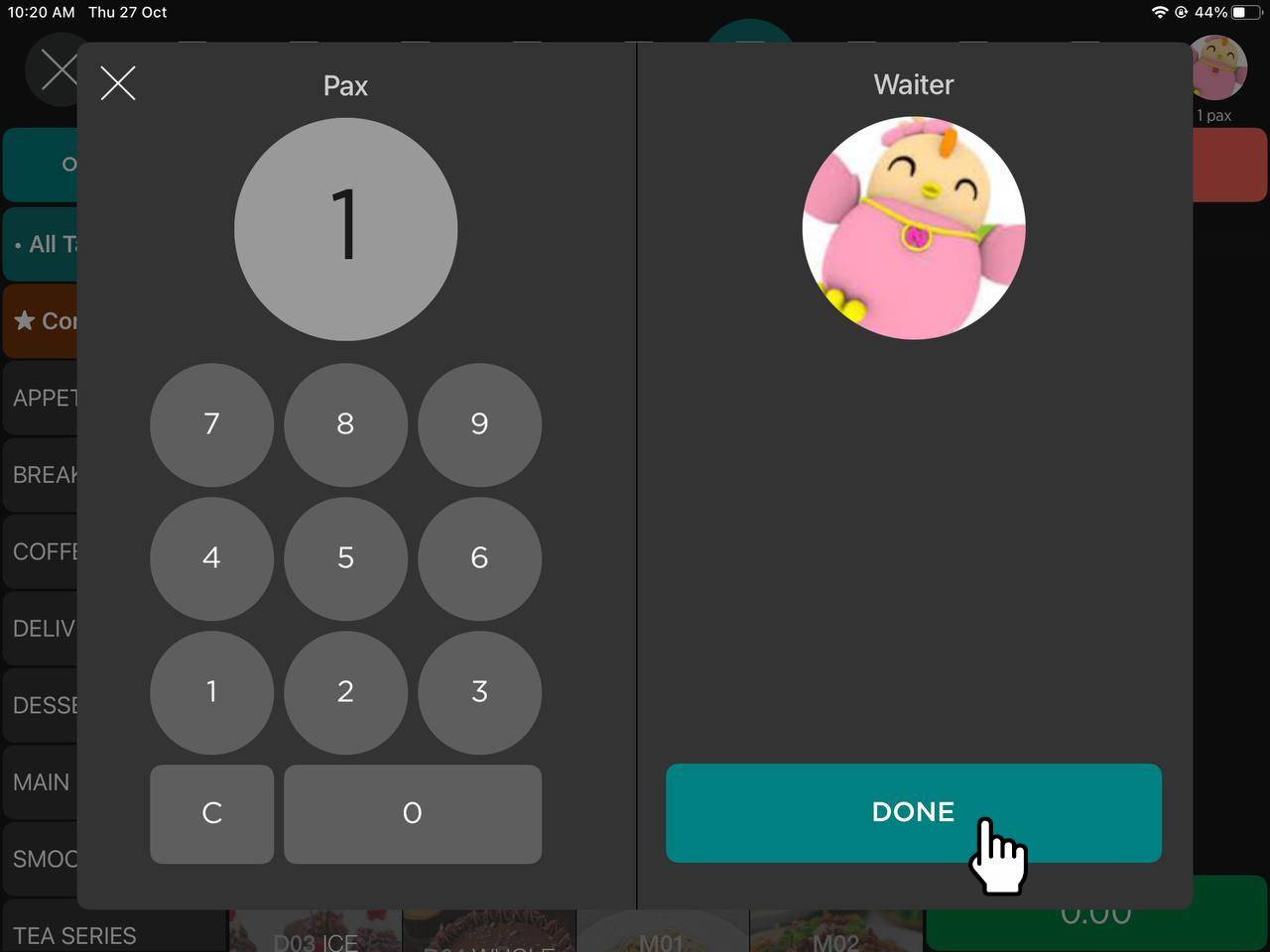
2. Click Done after you have confirmed Pax Number.
3. Click any item to make orders.
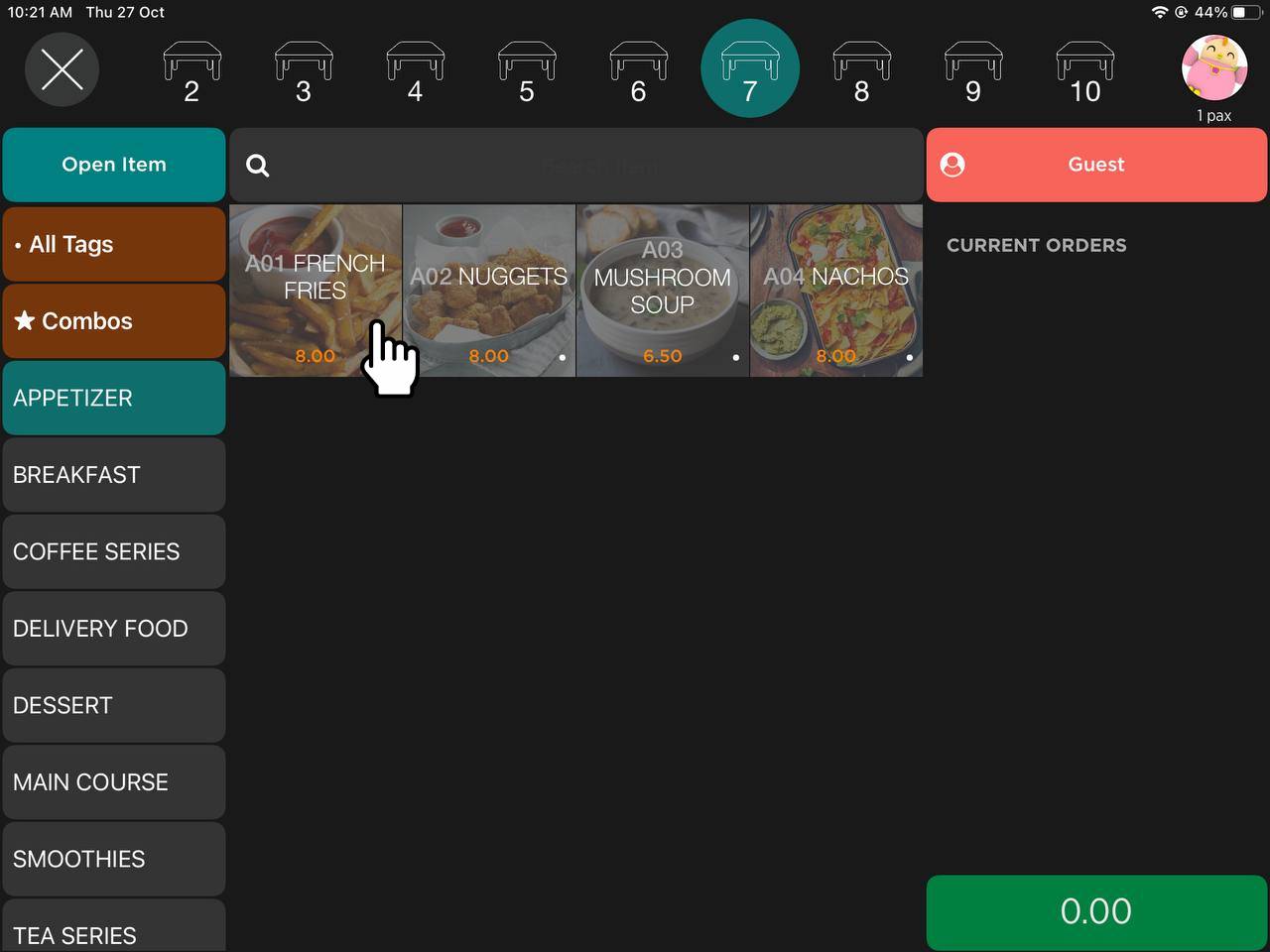
4. Click “Guest” button to key in Guest’s Information.
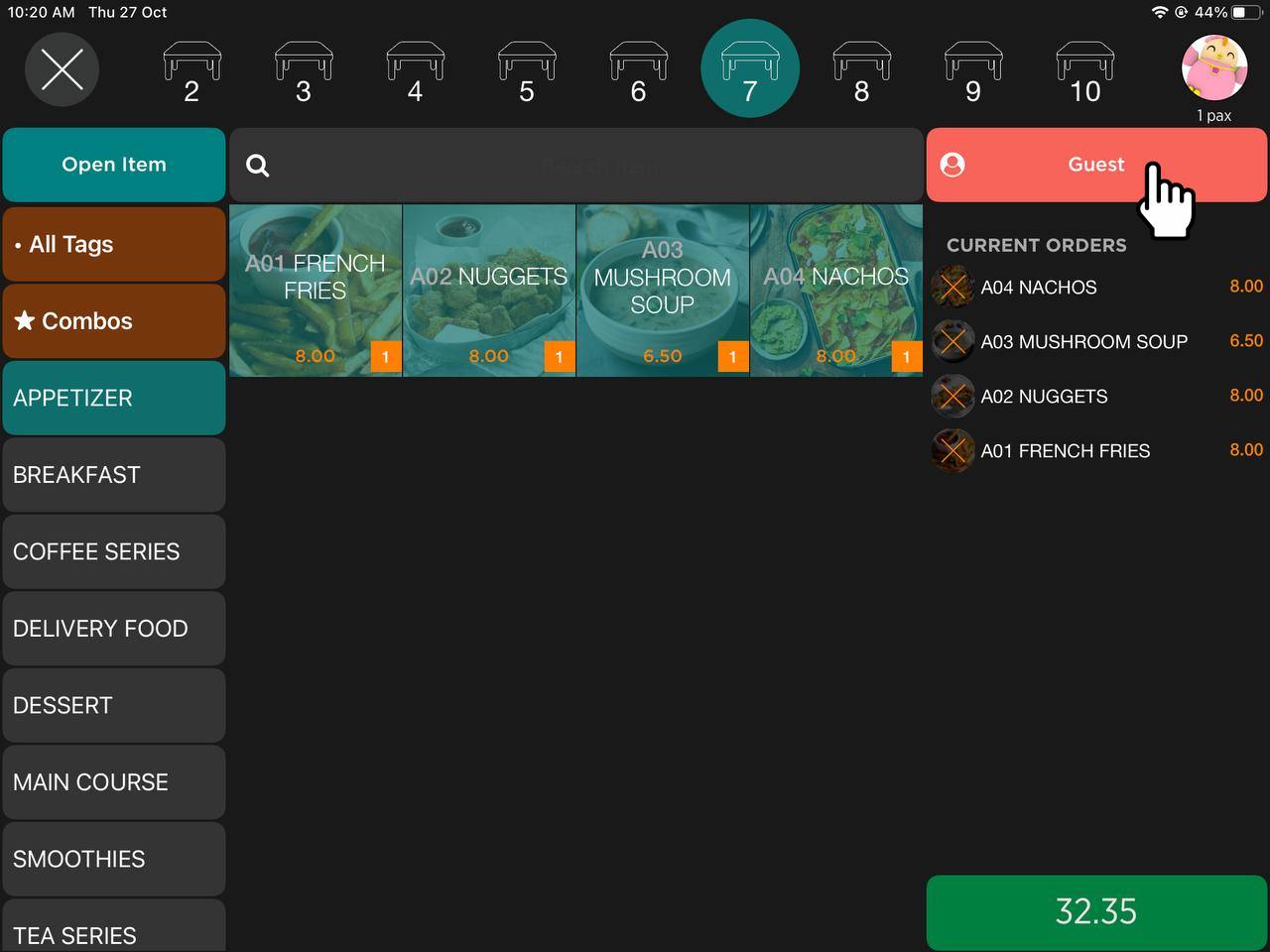
5. Key in Guest’s Information in Slurp! Central as stated in the picture below:
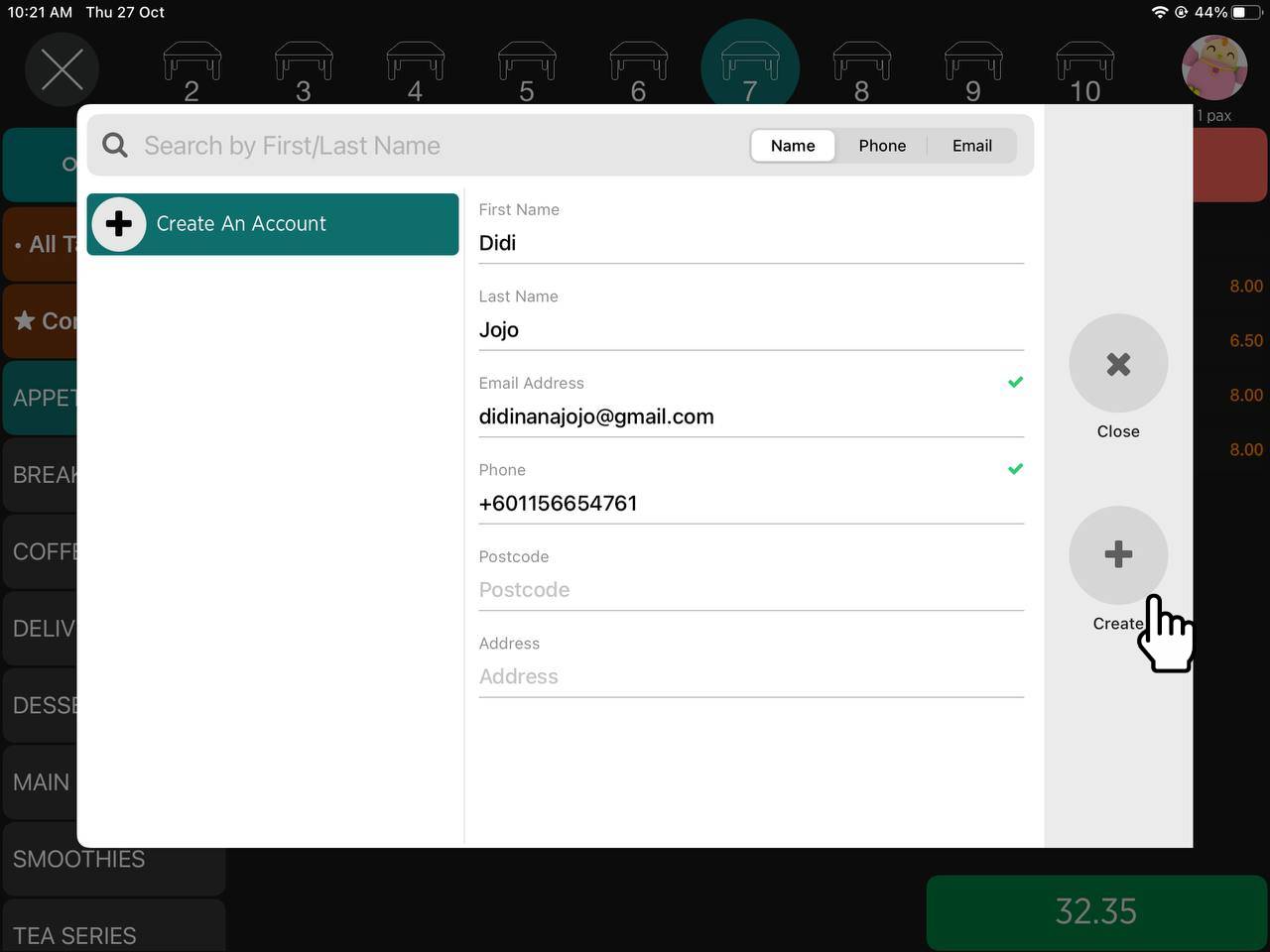
6. Once you’ve filled in the details, proceed to click the ‘Create’ button. Refer picture below:
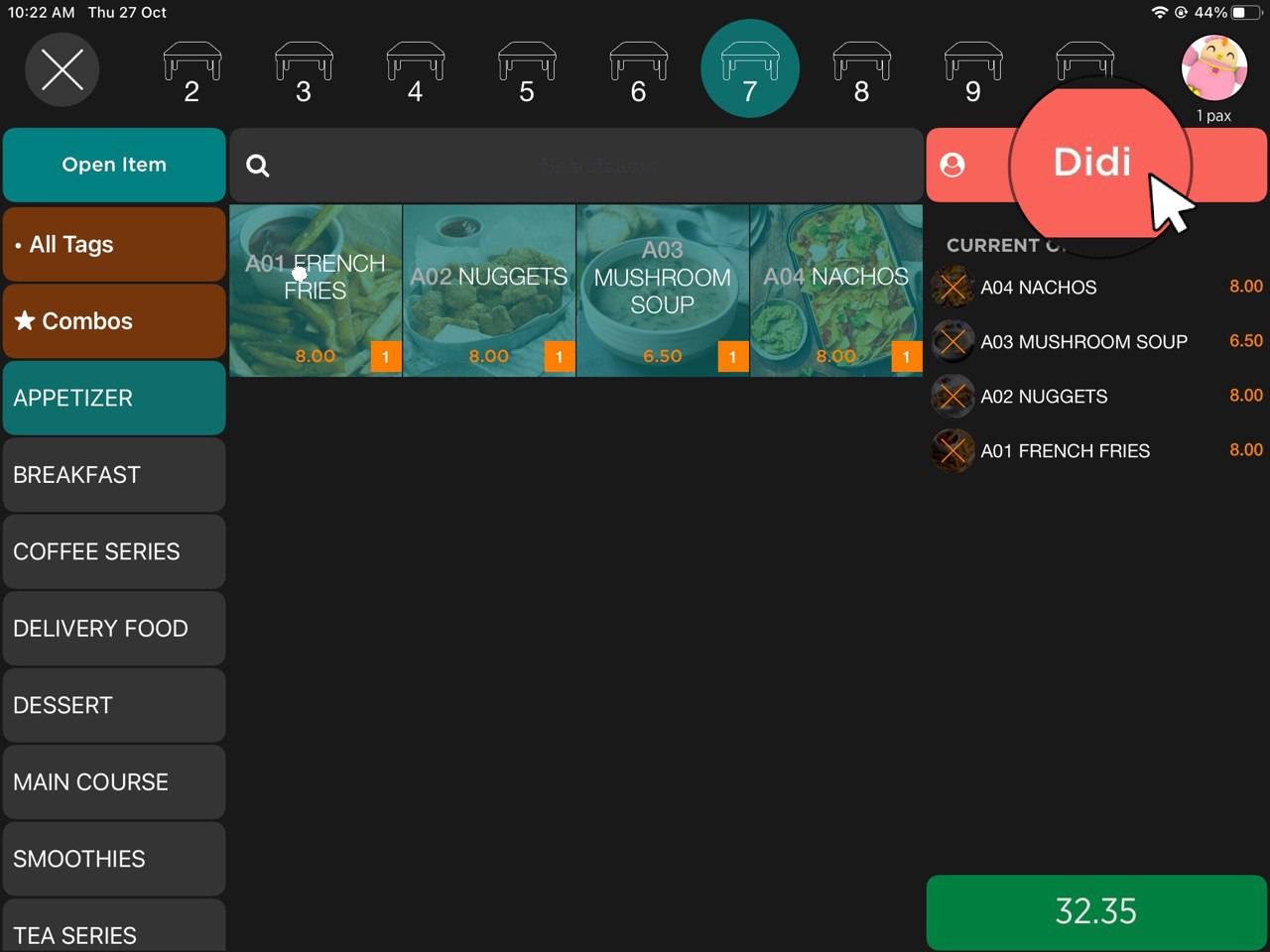
7. After you clicked the ‘Create’ button, the guest’s name will change from “Guest” to their name.
8. Click the green button to submit the order to kitchen.
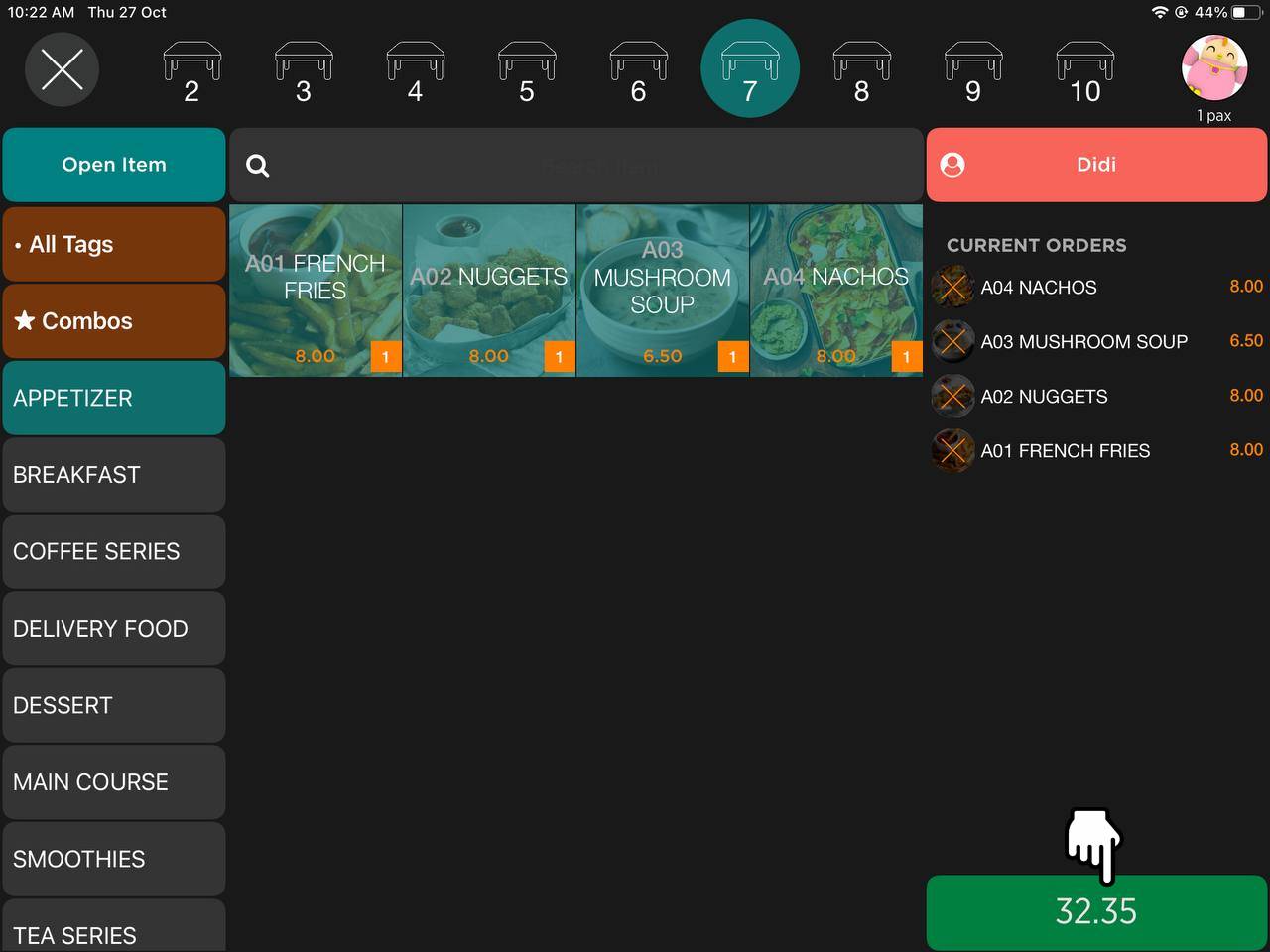
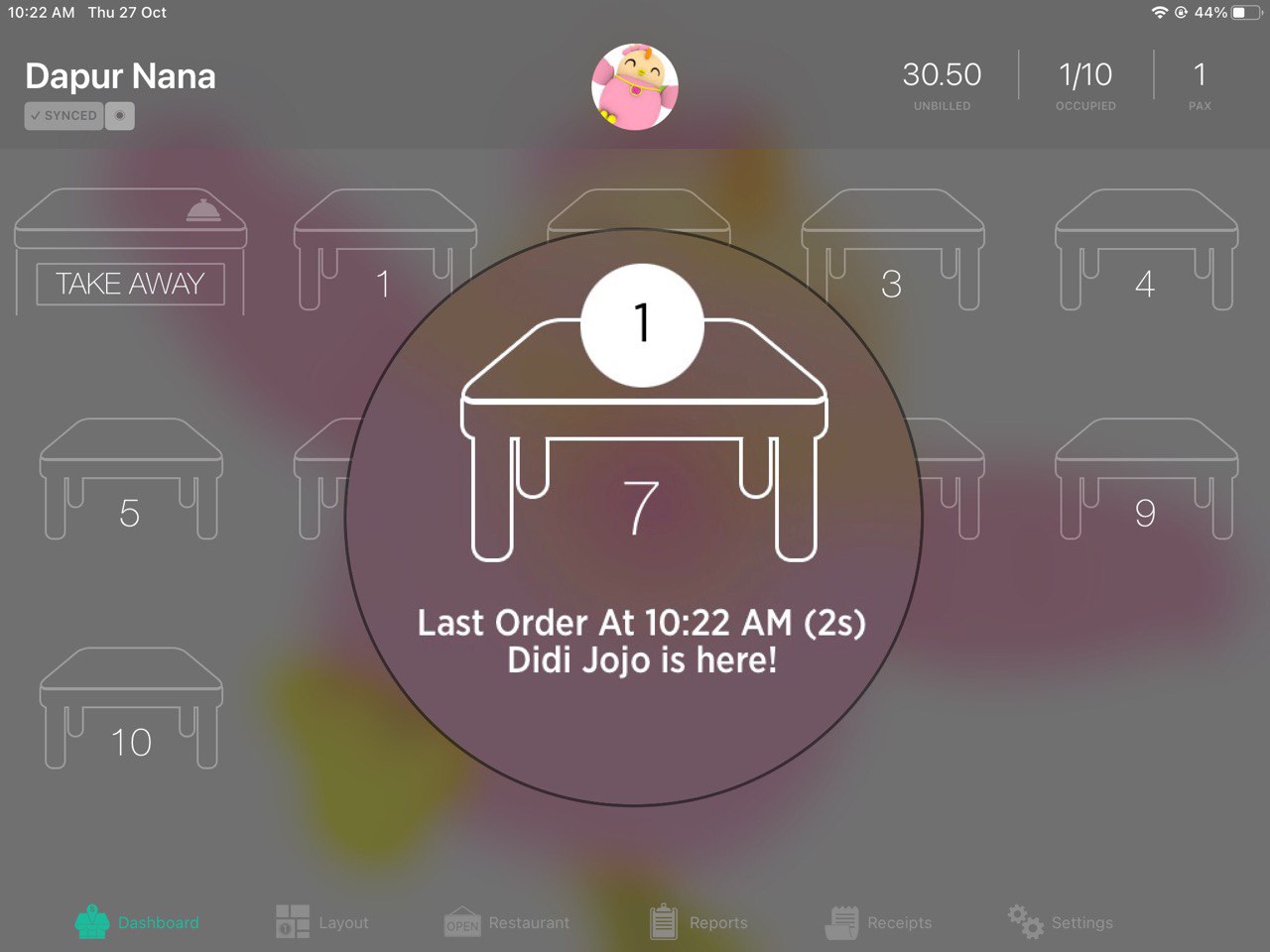
9. After order is submitted, the Dashboard will show the table as occupied. You can click on the occupied table to finalize bill.
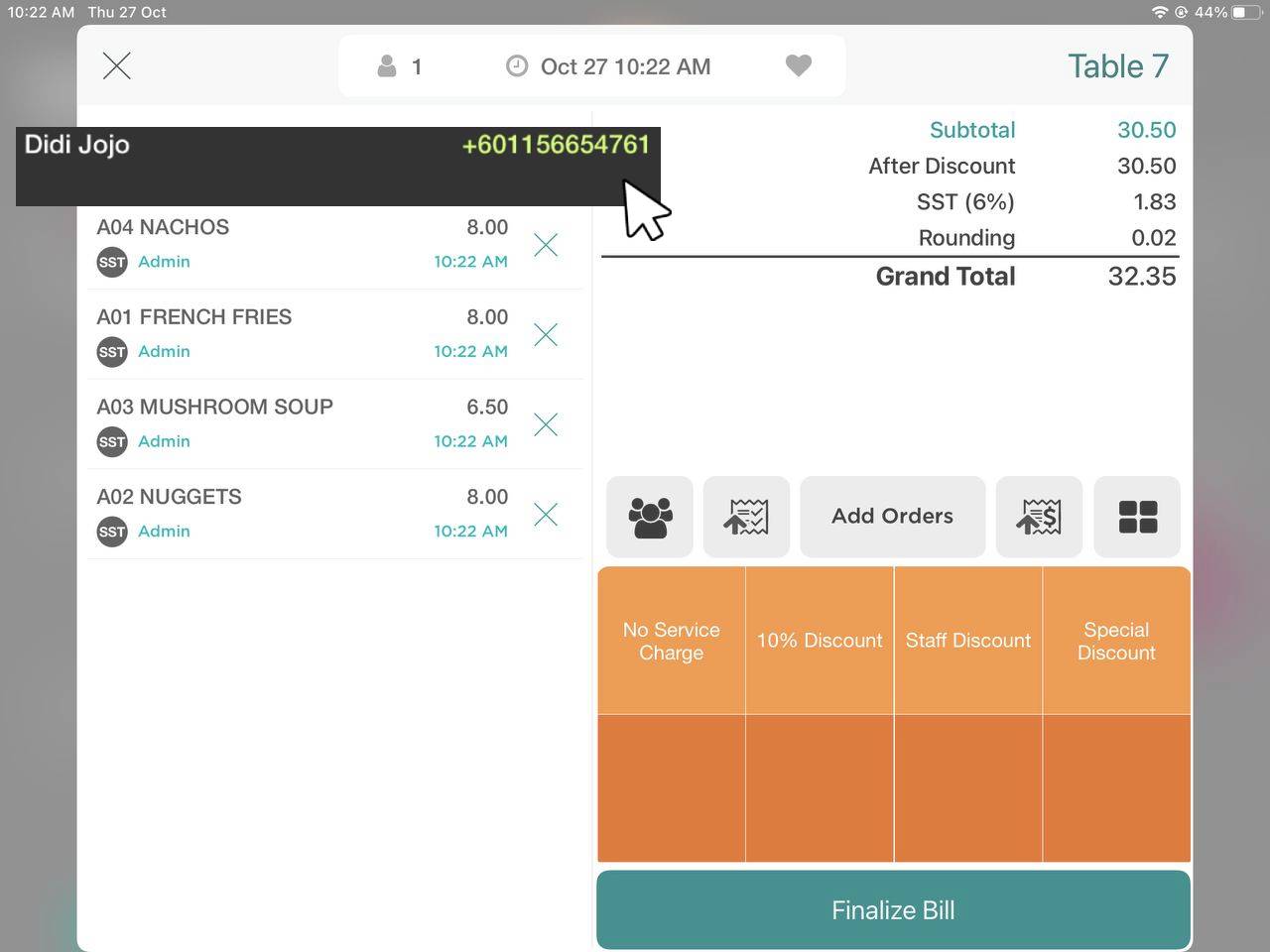
10. After clicking on the occupied table, you’ll see the guest’s details in the order page.
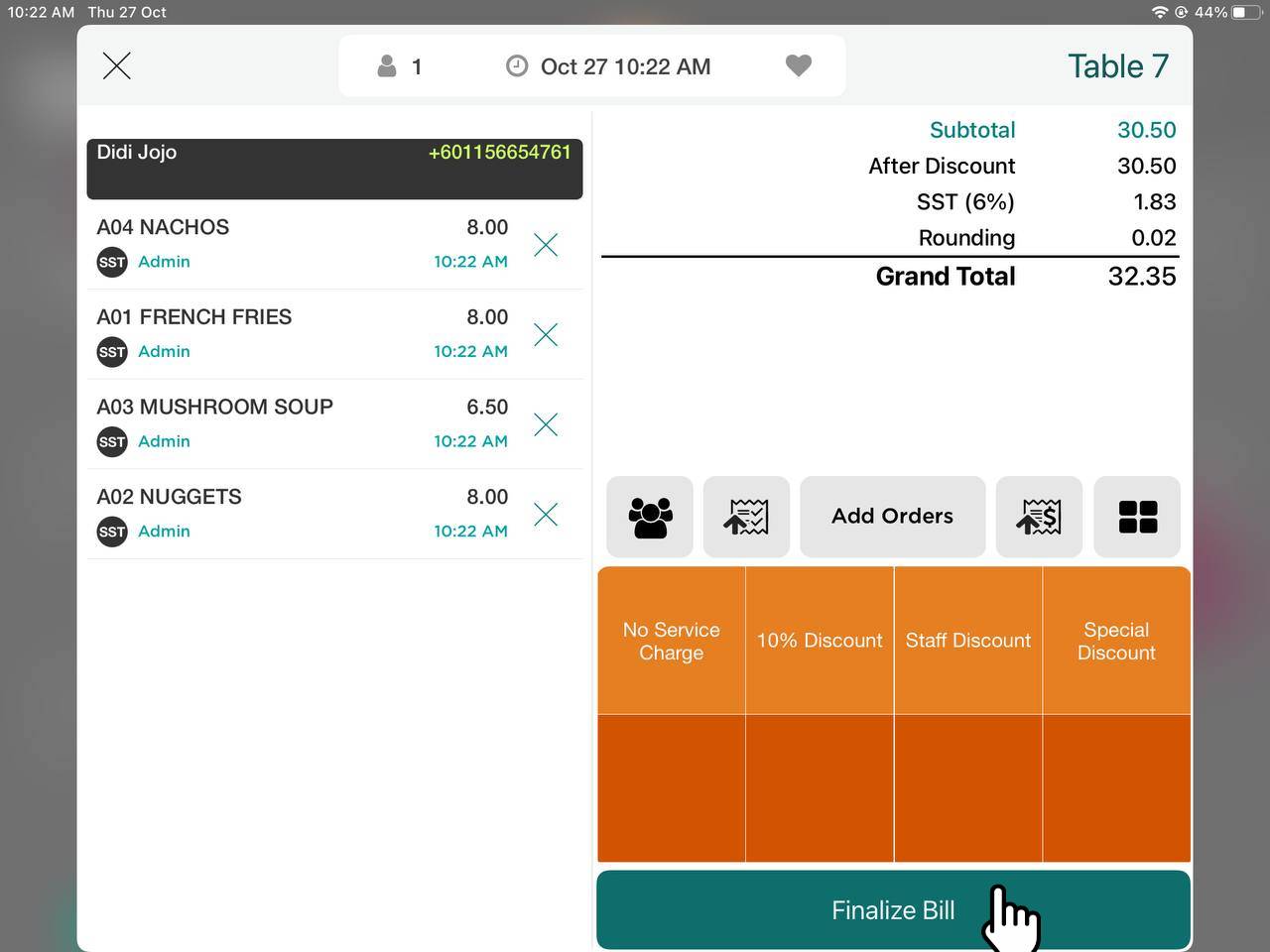
11. Next, you can finalize the bill as usual.
12. Choose payment method (Eg: Cash)
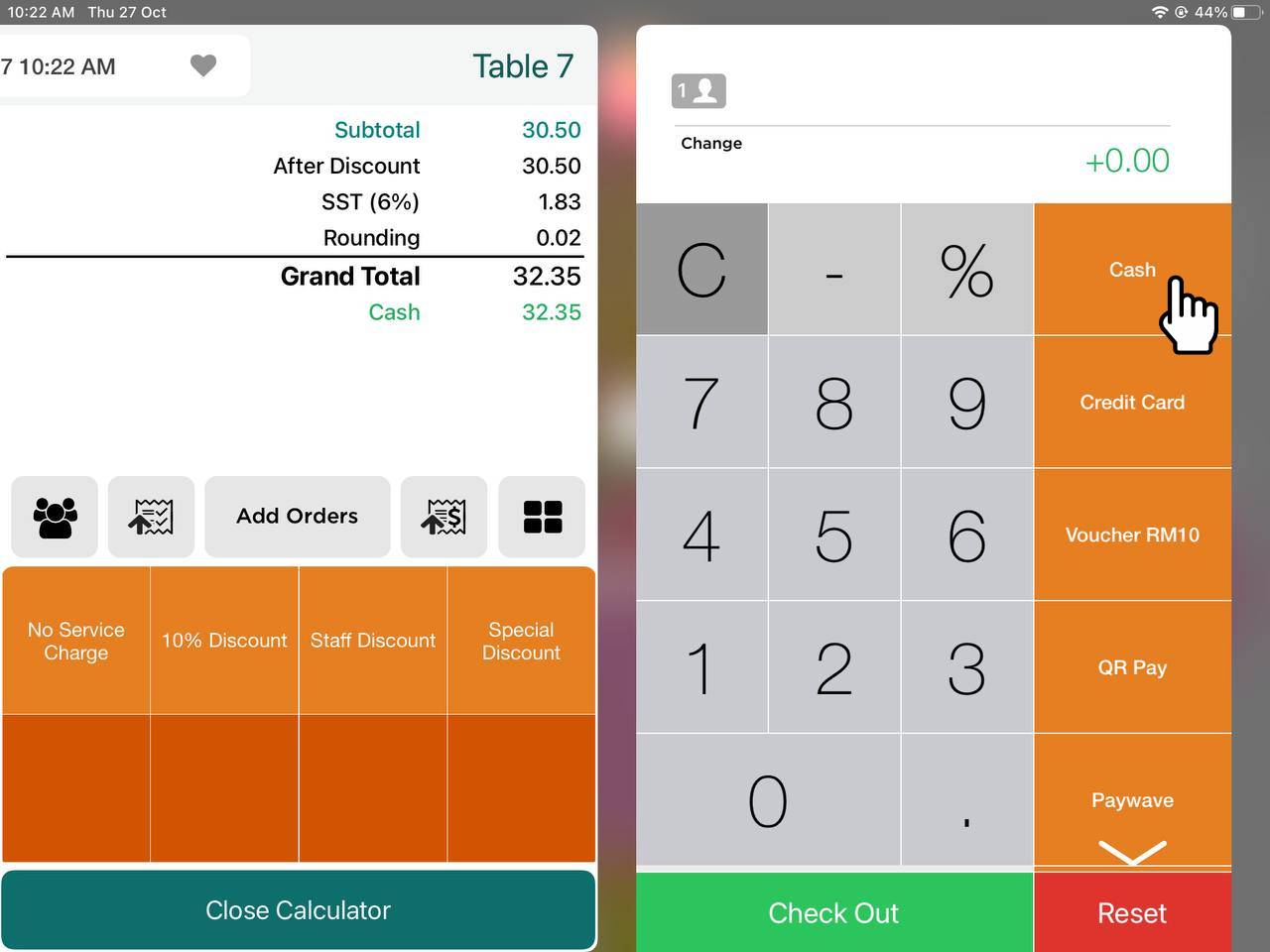
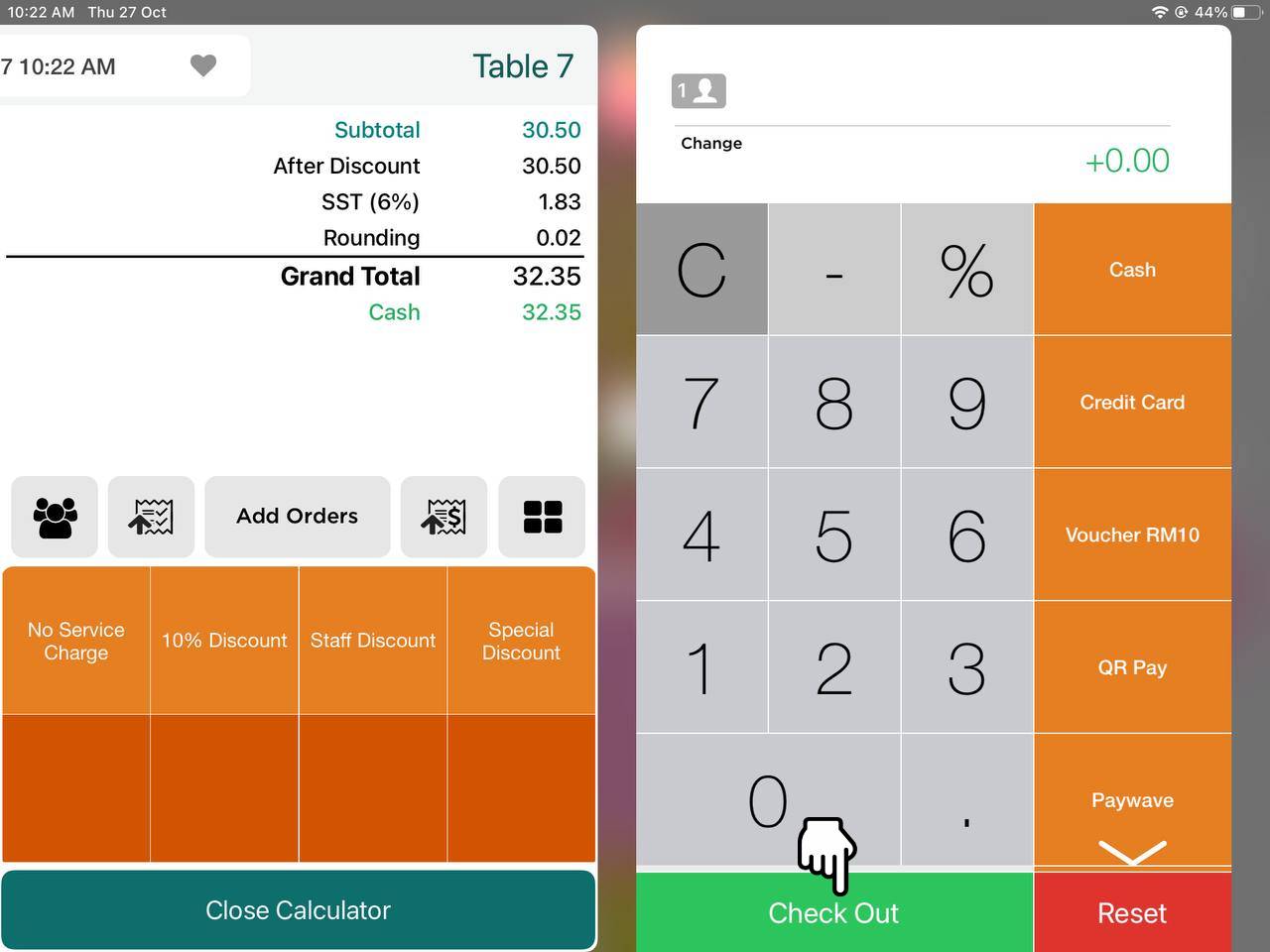
13. After selecting the payment method, you can click Check Out.
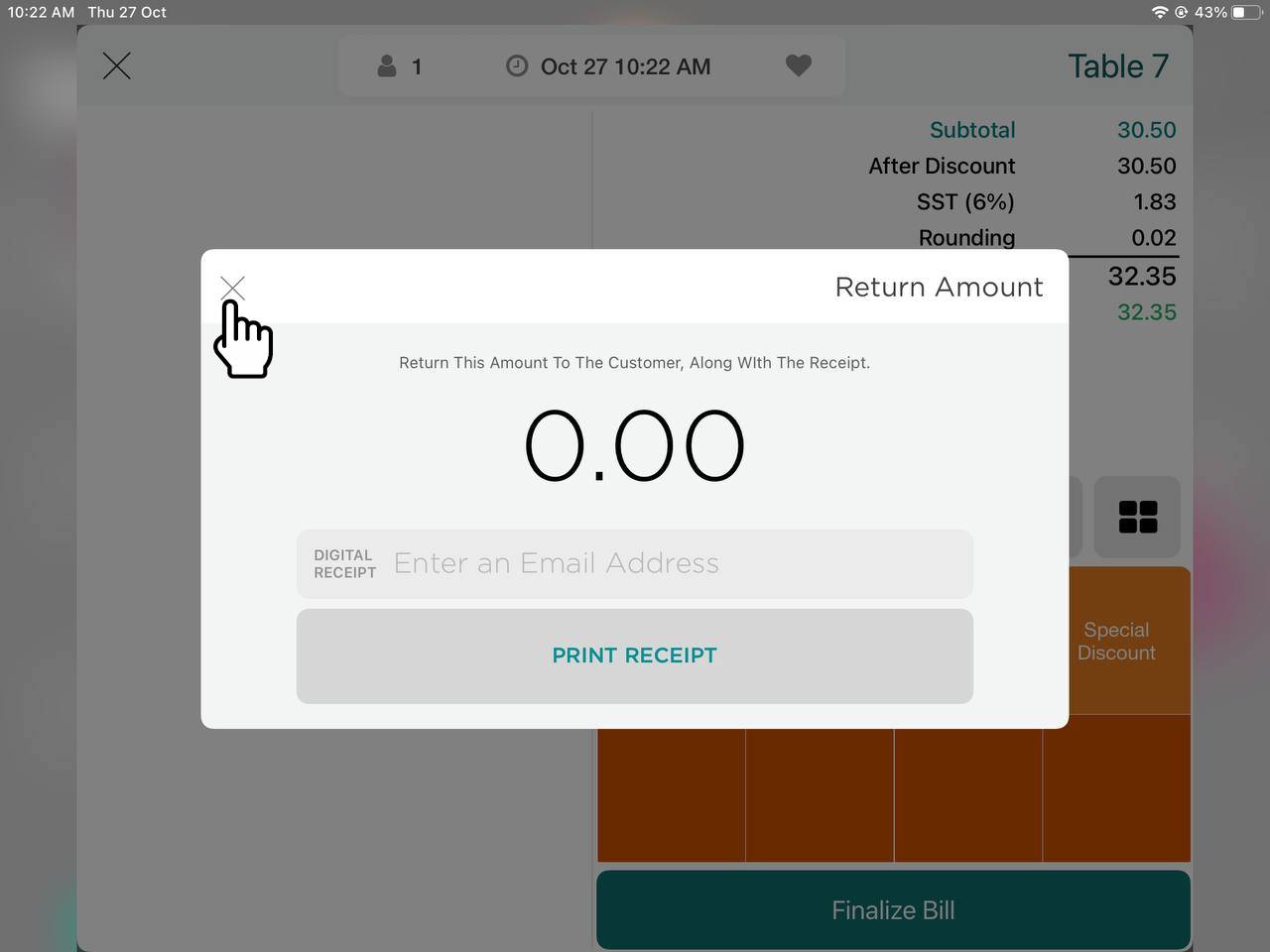
14. You will find the Balance Page after Checkout, and you can proceed to click ‘X” button to close the page.
15. To retrieve the Guest Information, you can go to Report section.
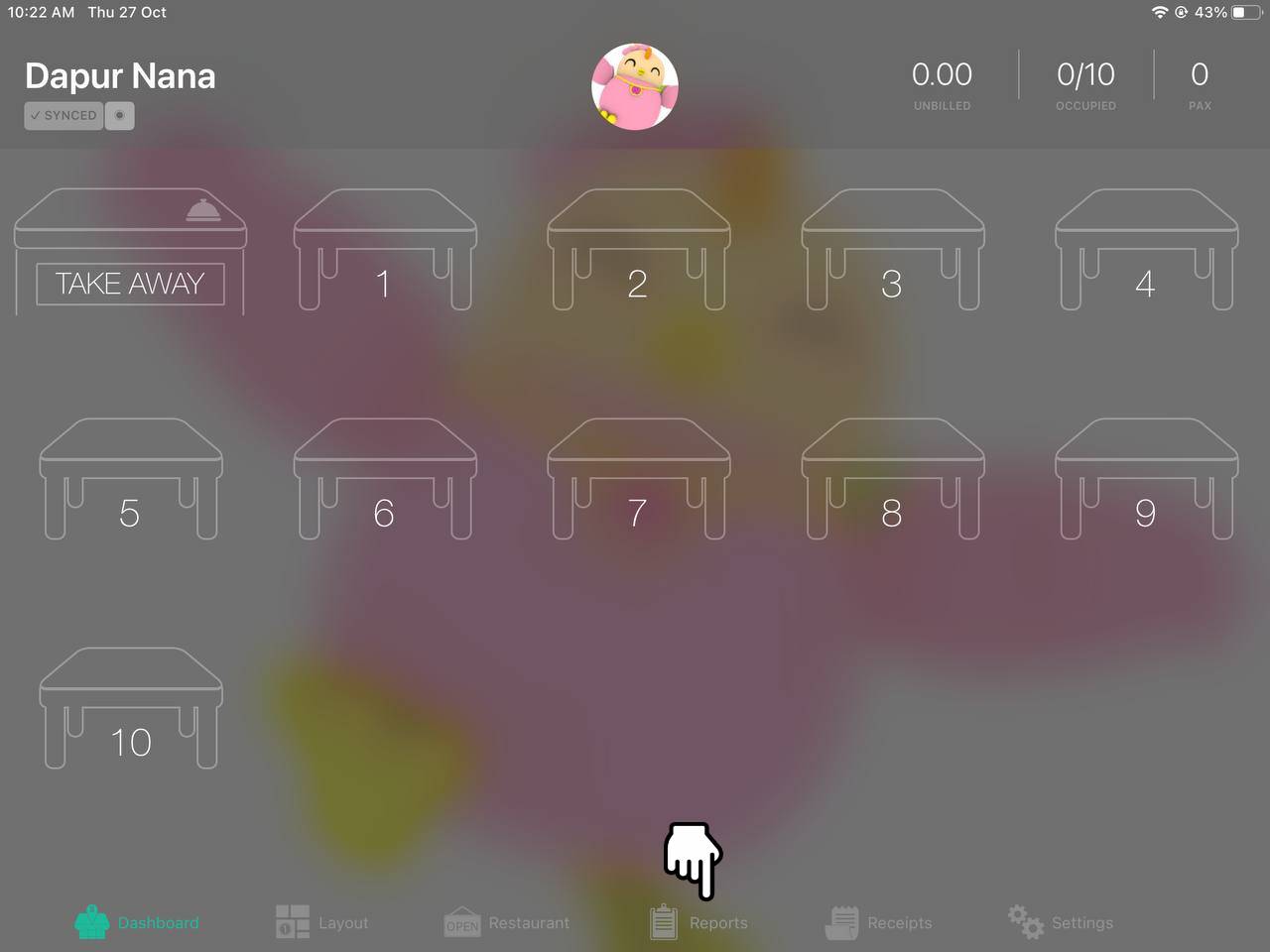
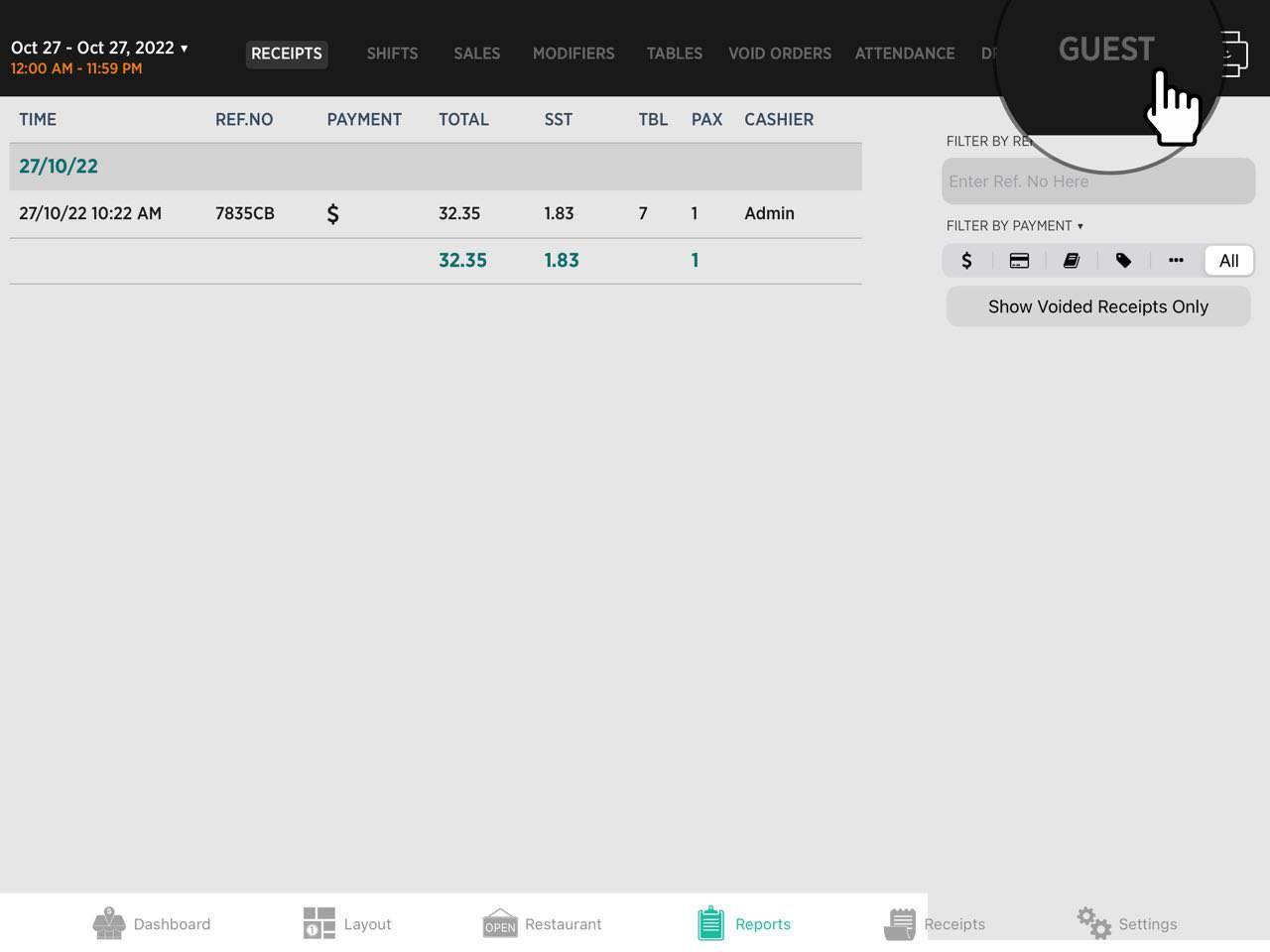
16. In this Report section, click on the Guest button at the top right of the page. Refer to the image below:
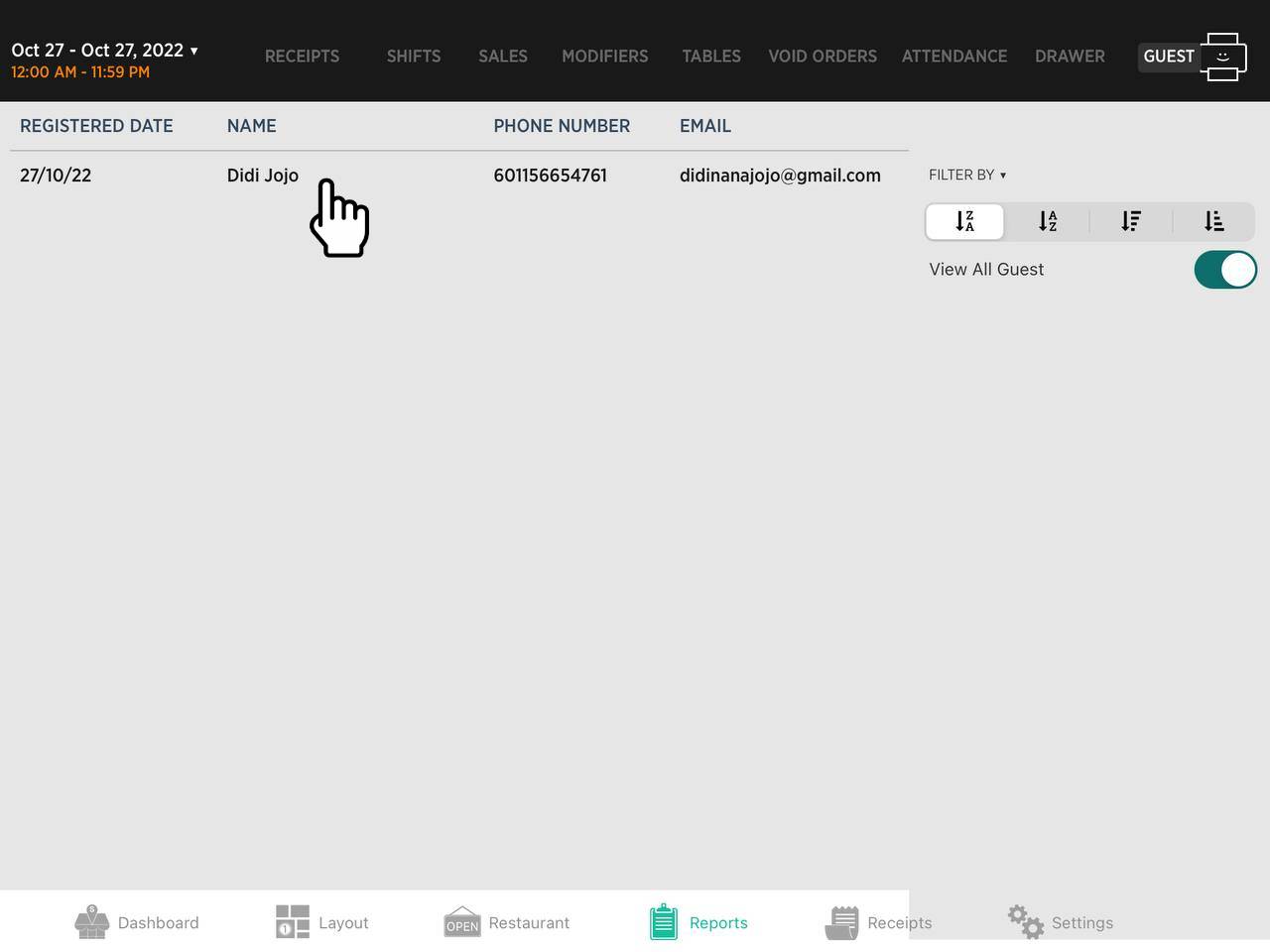
17. In the Guest Report, it will show list of guest name after you made a finalized bill. You may click on the guest’s name to edit.
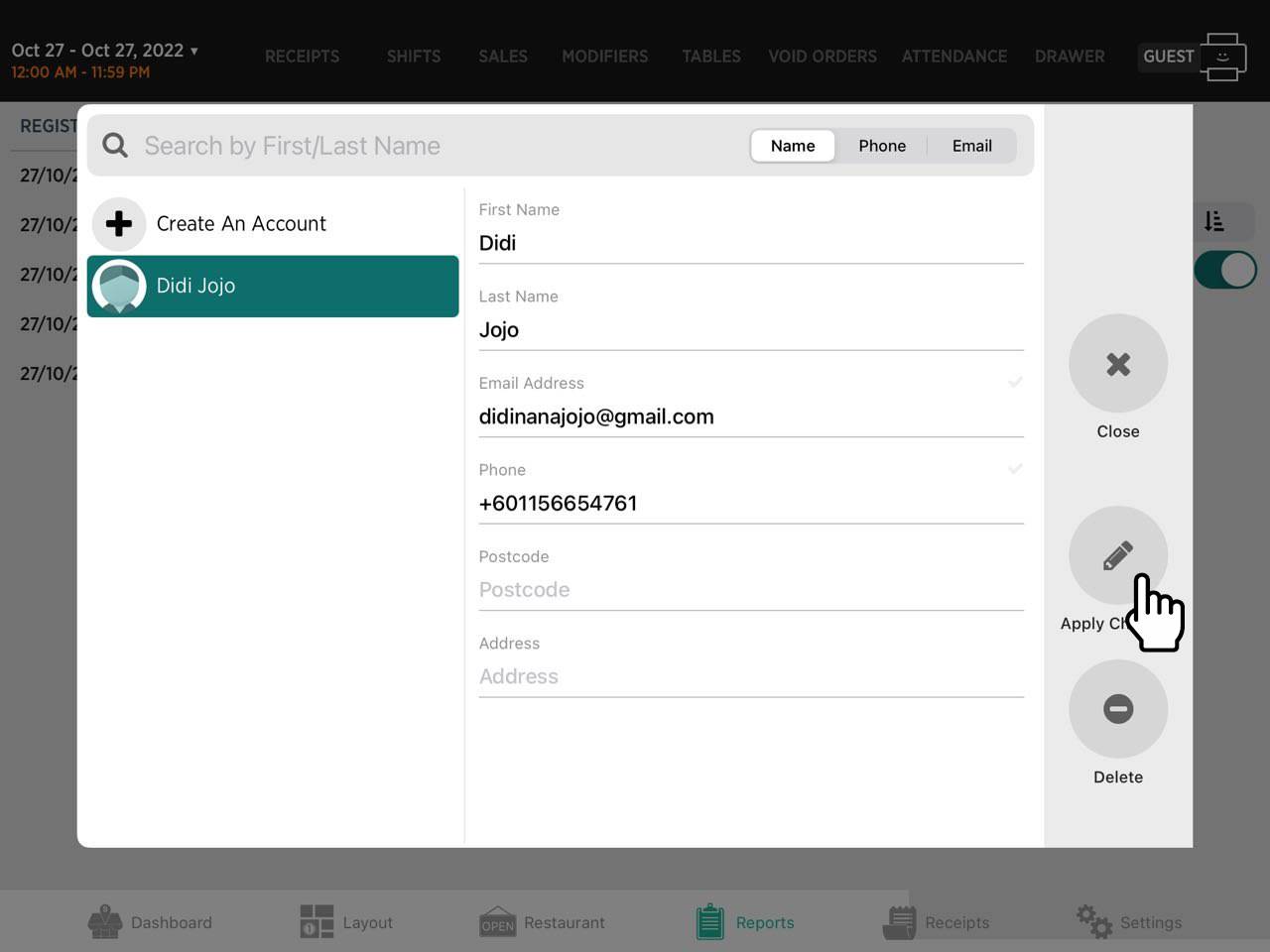
18. After clicking the guest’s name, you’ll be able to Edit or Delete the guest’s details. Click ‘Apply Changes’ once you’re done editing or click ‘Delete’ the customer details (if necessary).
19. Below is the list of Guest Details that will be shown in Guest Report.