
Maintenance
Cash Drawer
CDS
- [ENG] Price of each item does not appear on the CDS screen
- [ENG] Price Display Not Showing on CDS Screen (Android)
- [ENG] Price Display Does Not Appear on the CDS Screen (iOS)
- [Malay] Harga setiap item Tidak Keluar pada skrin CDS
- [Malay] Paparan Harga Tidak Keluar pada skrin CDS (Android)
- [Malay] Paparan Harga Tidak Keluar pada skrin CDS (iOS)
Printer
- [ENG] Printer Prints Receipts Slowly / Prints Strange Font
- [ENG] Printer Prints Unclearly / Blurry / Blank
- [Malay] Printer: Combine/ Separate Order
- [Malay] Printer Mencetak Resit Dengan Perlahan / Mencetak Font Pelik
- [Malay] Printer Mencetak Dengan Tidak Jelas / Kabur / Blur / Kosong
- [ENG] Printer: Combine or Separate Order
- [ENG] Turn On Master Copy
- [ENG] Restart Printer
- [ENG] Printer: Remove and Add
- [ENG] Printer: Test Print
- [ENG] Printer: Add ‘tagging’ On ‘itemize printing’
- [ENG] Printer Disconnected
- [ENG] Printer: How to check the SKAB on Cloud
- [Malay] Printer: Bagaimana untuk semak SKAB pada Cloud
- [Malay] Hidupkan Master Copy
- [Malay] Hidupkan Semula Printer (Restart Printer)
- [Malay] Test Print pada Printer
- [Malay] Buang dan tambah printer (Remove and Add Printer)
- [Malay] Tambah ‘tagging’ pada ‘itemize printing’
- [Malay] Printer Disconnected
- [Malay] Printer Cetak Resit Tidak Diperlukan/ Cetak Tanpa Henti
- [ENG] Printer Prints Receipt Unnecessarily or Prints Non-stop
- Show Remaining Articles (1) Collapse Articles
Waiter Apps
Report
- Articles coming soon
Router
General
Slurp! CDS
Getorders App
Slurp! Central 2
Printer 2.0
Slurp!Cloud 2
- How To Create Discount
- How to Create a Payment Method in Slurp Cloud
- How to Create a Preset Reason in Slurp Cloud
- How to Create Charges in Slurp Cloud
- How to Create Taxes in Slurp Cloud
- How to Create Other Payment Methods in Slurp Cloud
- How to Create an API Access Token in Slurp Cloud
- How to Create a Discount with Time Availability in Slurp Cloud
e-Invoice
Slurp! FAQ
- Articles coming soon
Slurp! Inventory Retails
Slurp! Waiter Android
Slurp! Waiter iOS
Ipad
Payment Integration
How to Edit a Product’s Details and Pricing
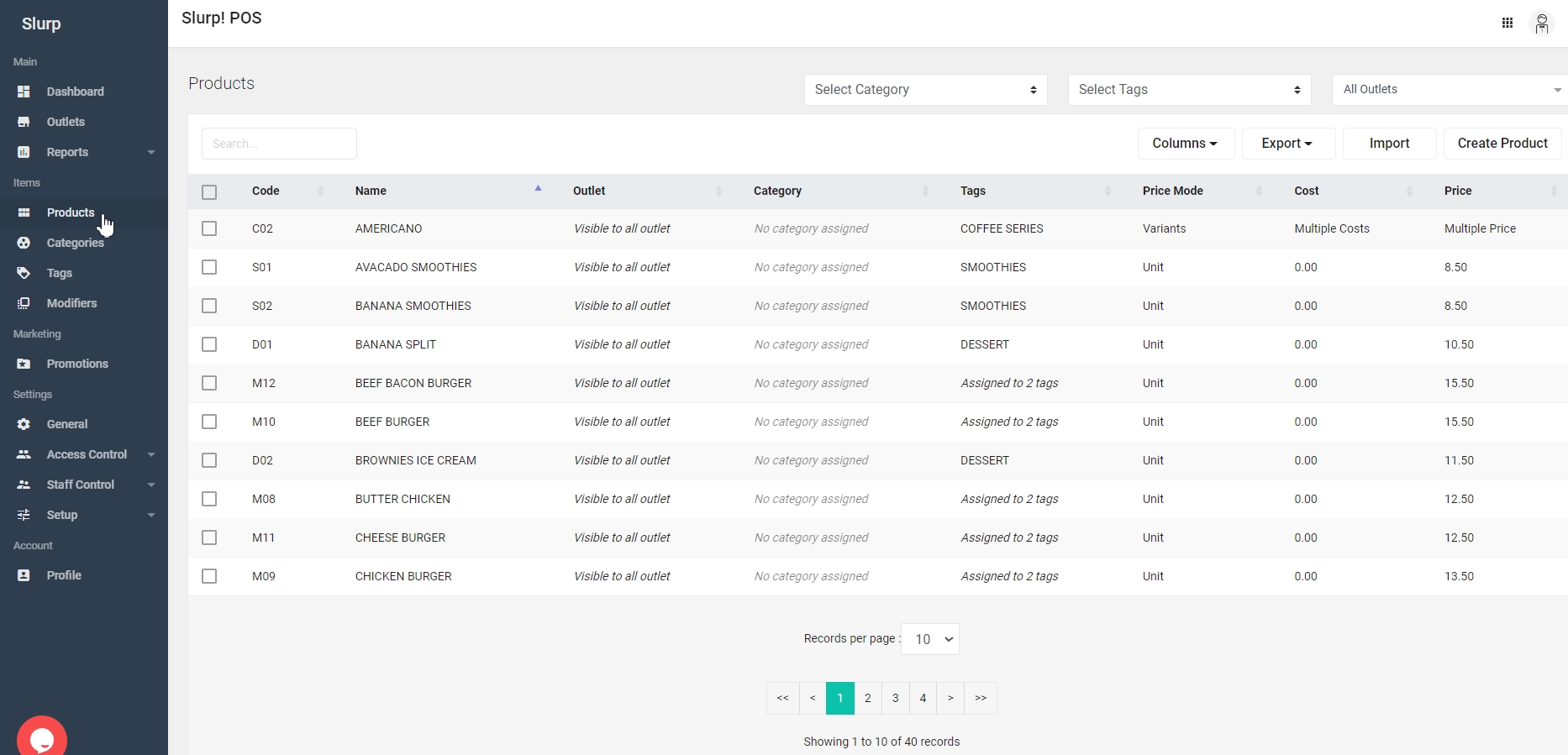
1. Go to the Products section
Navigate to the Products section.
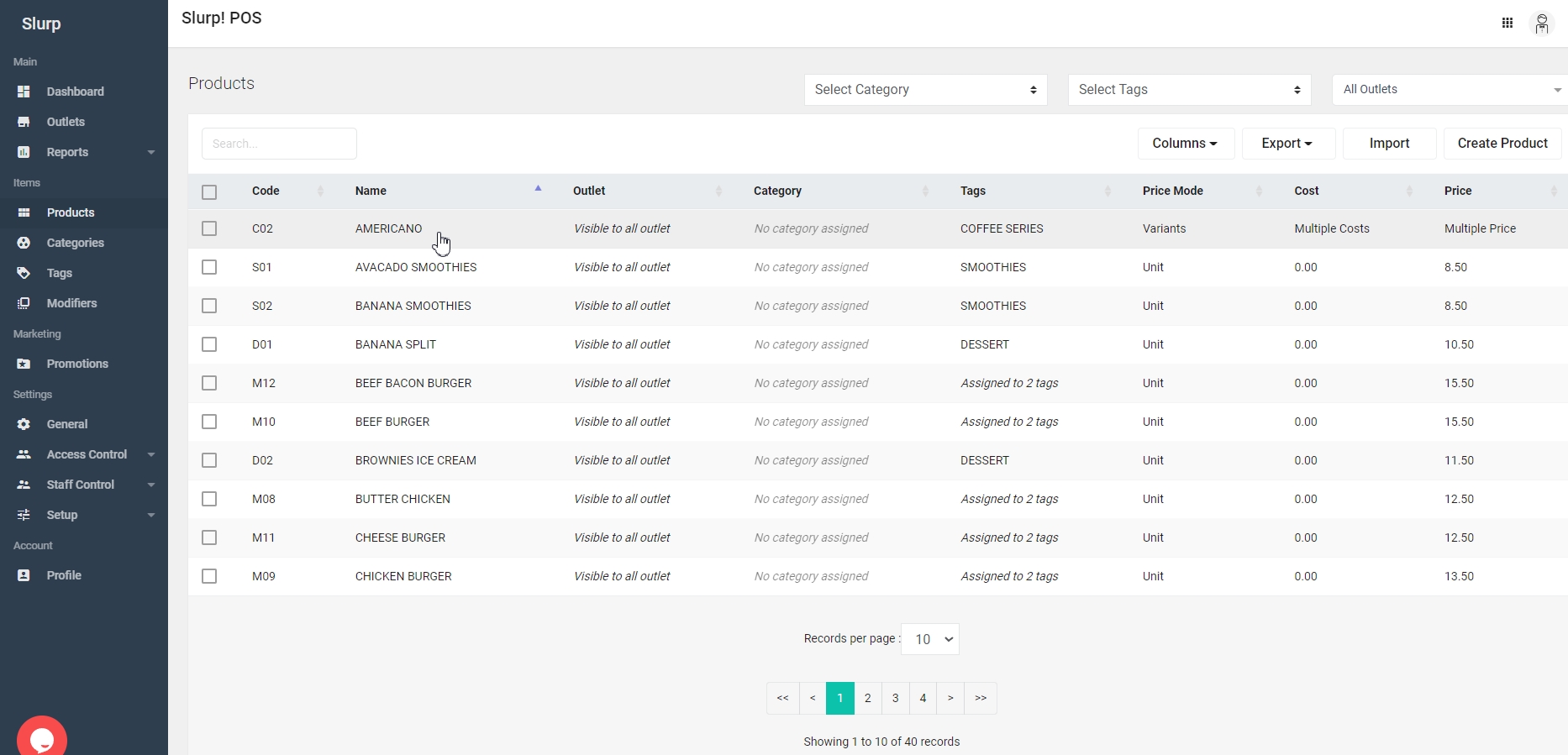
2. Select the product you want to edit
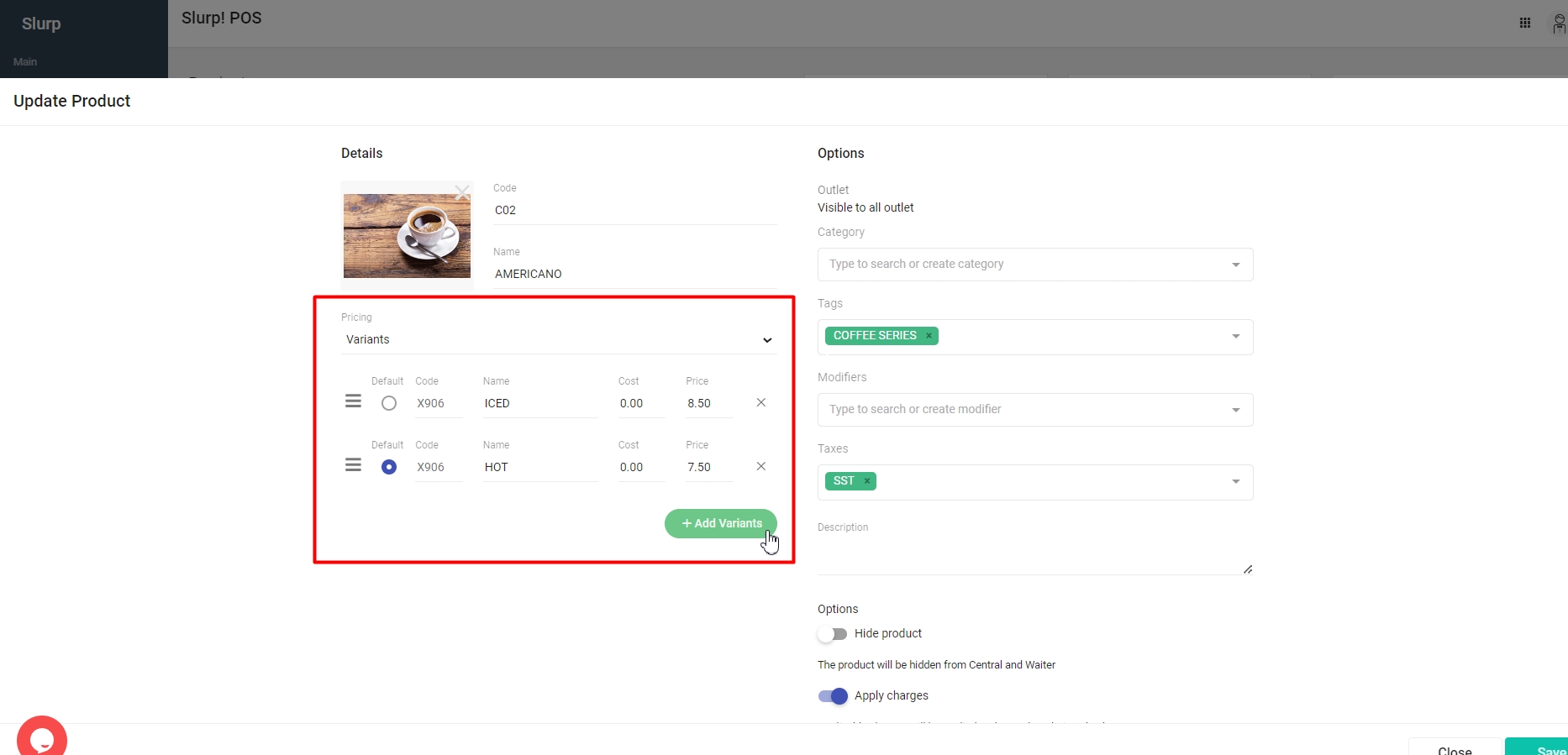
Click on the product name you wish to edit (e.g., AMERICANO).
3. Edit the product details and pricing
You may edit the product details as needed, including the Code, Product Name, Category, Tags, and other available fields.
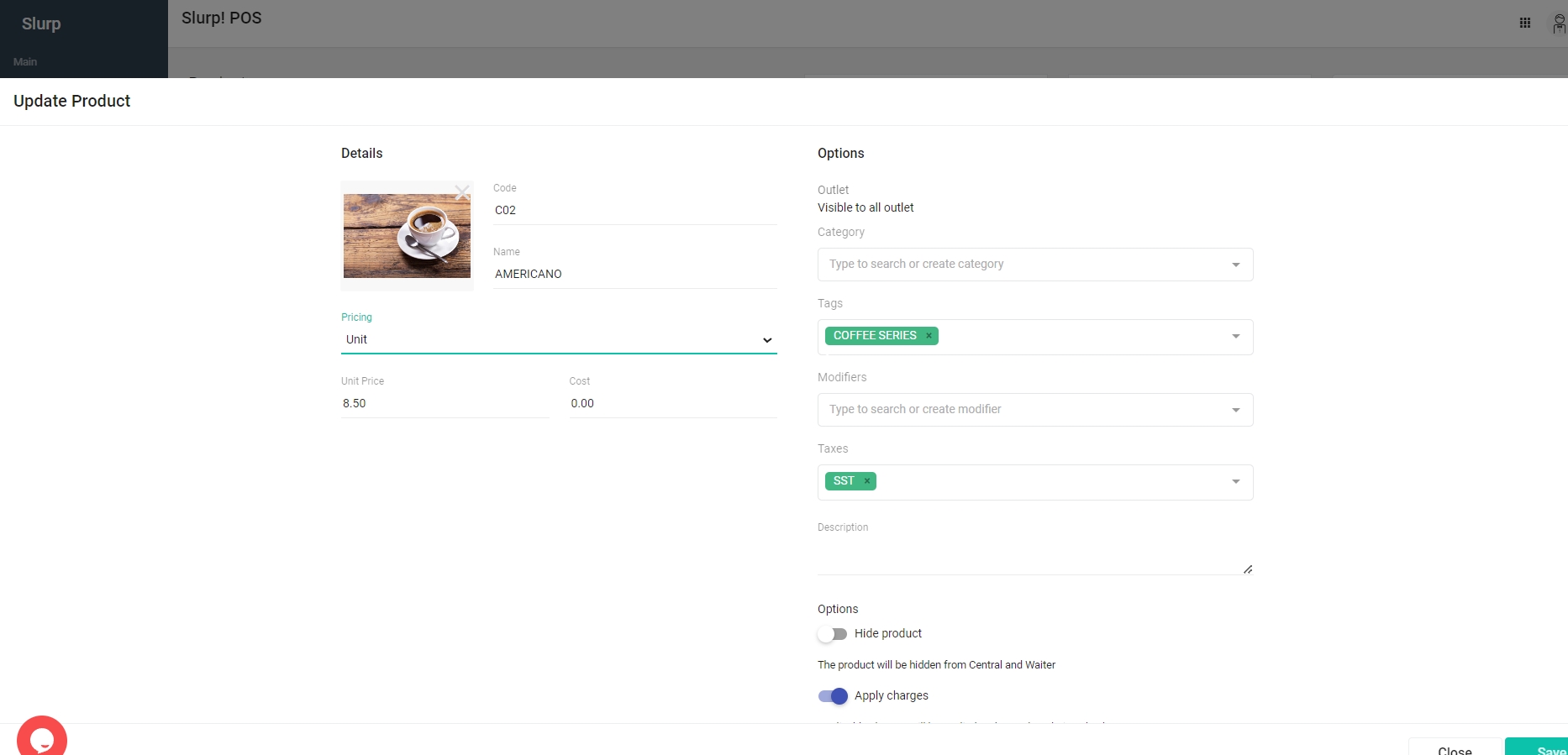
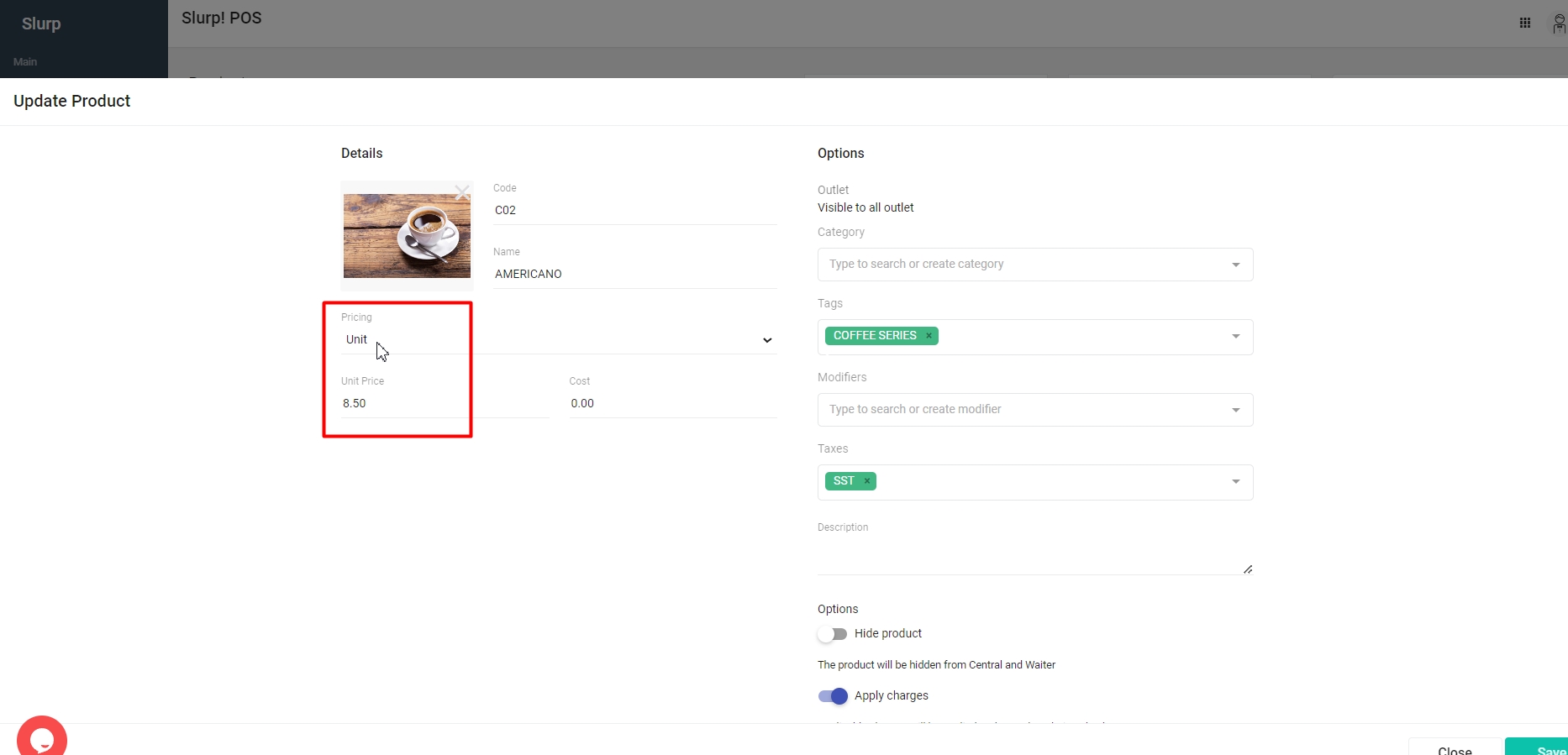
Under the Pricing section, there are three pricing modes available:
A. Unit
Select Unit if the product has a single fixed price. Enter the price for the product.
B. Variants
Select Variants if the product has different options with different prices. You can add multiple variants and assign a price to each one.
For example:
- Iced
- Hot
Note: Customers must select one variant when ordering this product.
C. Variable
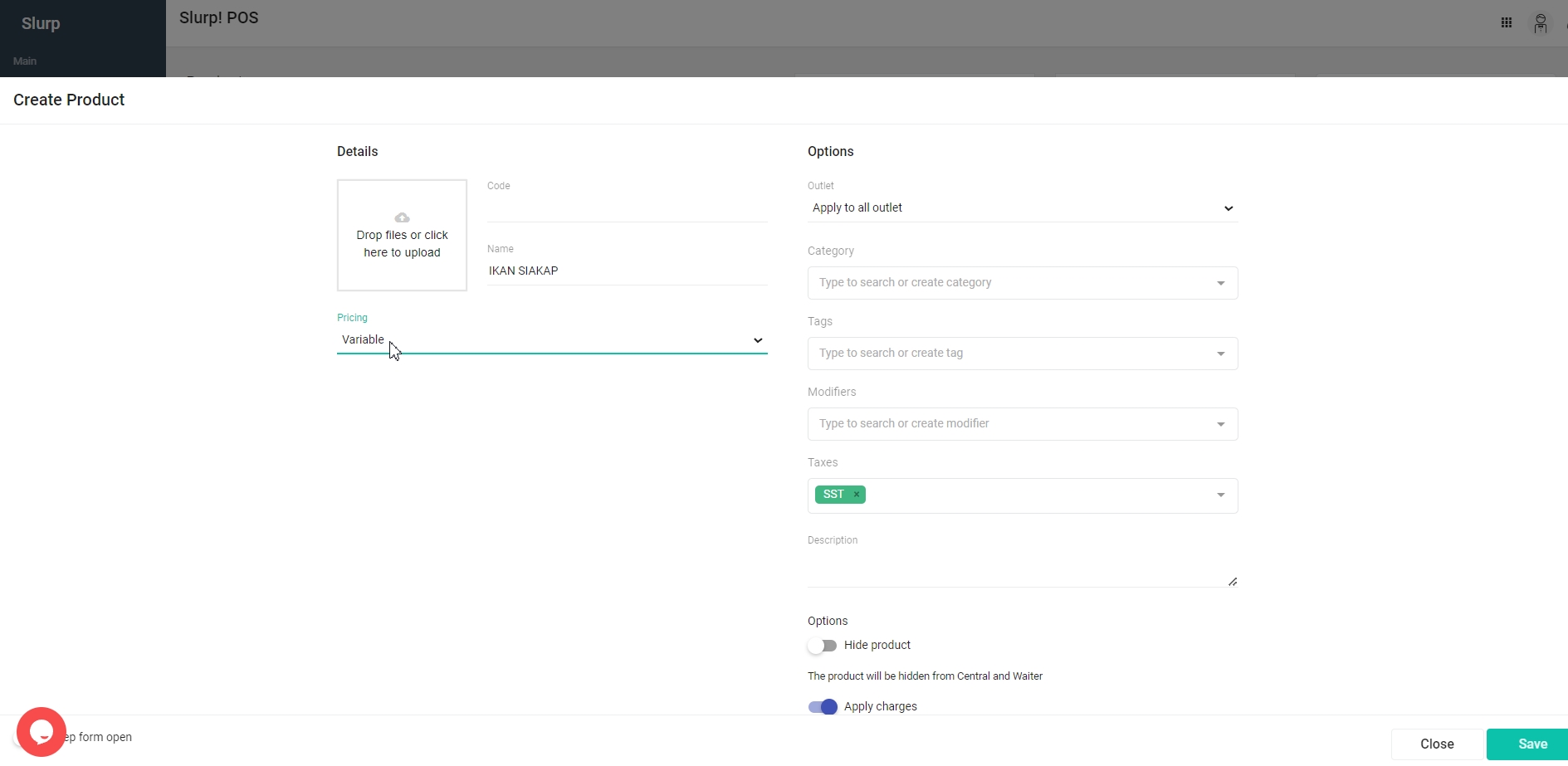
Select Variable if the product requires a custom price to be entered in Slurp! Central.
The product price will be displayed as RM0.00 in the product setup. This mode is suitable for items whose prices vary depending on the measurement or quantity requested.
4. Save and update the settings
Once you have finished editing the product, click Save.
Then, perform an Update Settings in your Slurp! Central POS to apply the latest changes.