
Maintenance
Cash Drawer
CDS
- [ENG] Price of each item does not appear on the CDS screen
- [ENG] Price Display Not Showing on CDS Screen (Android)
- [ENG] Price Display Does Not Appear on the CDS Screen (iOS)
- [Malay] Harga setiap item Tidak Keluar pada skrin CDS
- [Malay] Paparan Harga Tidak Keluar pada skrin CDS (Android)
- [Malay] Paparan Harga Tidak Keluar pada skrin CDS (iOS)
Printer
- [ENG] Printer Prints Receipts Slowly / Prints Strange Font
- [ENG] Printer Prints Unclearly / Blurry / Blank
- [Malay] Printer: Combine/ Separate Order
- [Malay] Printer Mencetak Resit Dengan Perlahan / Mencetak Font Pelik
- [Malay] Printer Mencetak Dengan Tidak Jelas / Kabur / Blur / Kosong
- [ENG] Printer: Combine or Separate Order
- [ENG] Turn On Master Copy
- [ENG] Restart Printer
- [ENG] Printer: Remove and Add
- [ENG] Printer: Test Print
- [ENG] Printer: Add ‘tagging’ On ‘itemize printing’
- [ENG] Printer Disconnected
- [ENG] Printer: How to check the SKAB on Cloud
- [Malay] Printer: Bagaimana untuk semak SKAB pada Cloud
- [Malay] Hidupkan Master Copy
- [Malay] Hidupkan Semula Printer (Restart Printer)
- [Malay] Test Print pada Printer
- [Malay] Buang dan tambah printer (Remove and Add Printer)
- [Malay] Tambah ‘tagging’ pada ‘itemize printing’
- [Malay] Printer Disconnected
- [Malay] Printer Cetak Resit Tidak Diperlukan/ Cetak Tanpa Henti
- [ENG] Printer Prints Receipt Unnecessarily or Prints Non-stop
- Show Remaining Articles (1) Collapse Articles
Waiter Apps
Report
- Articles coming soon
Router
General
Slurp! CDS
Getorders App
Slurp! Central 2
Printer 2.0
Slurp!Cloud 2
- How To Create Discount
- How to Create a Payment Method in Slurp Cloud
- How to Create a Preset Reason in Slurp Cloud
- How to Create Charges in Slurp Cloud
- How to Create Taxes in Slurp Cloud
- How to Create Other Payment Methods in Slurp Cloud
- How to Create an API Access Token in Slurp Cloud
- How to Create a Discount with Time Availability in Slurp Cloud
e-Invoice
Slurp! FAQ
- Articles coming soon
Slurp! Inventory Retails
Slurp! Waiter Android
Slurp! Waiter iOS
Ipad
Payment Integration
How to Create Charges in Slurp Cloud
Follow the steps below to create a charge in Slurp Cloud.
Step 1: Access the Taxes and Charges Page
Go to Taxes and Charges in Slurp Cloud.
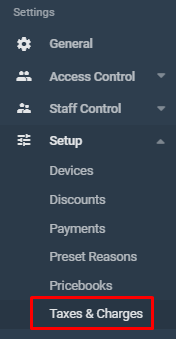
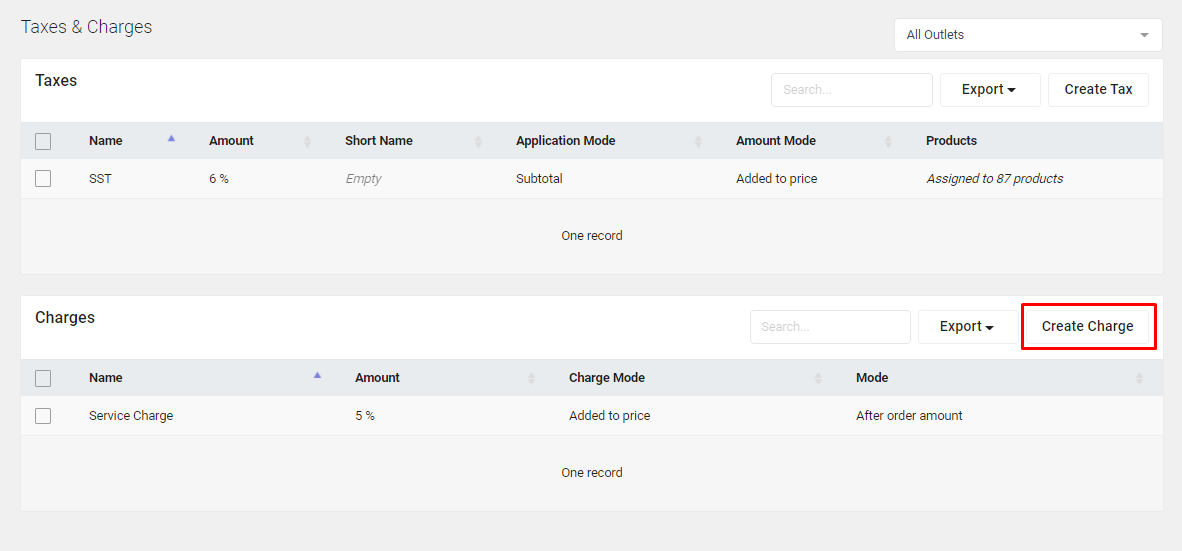
Step 2: Create a New Charge
Click Create Charge.
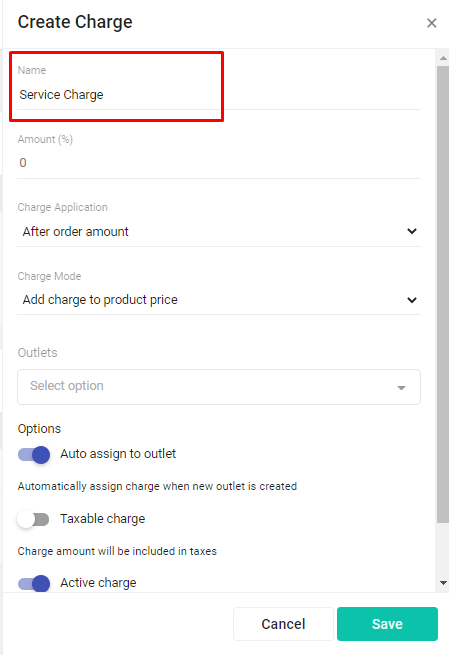
Step 3: Enter the Charge Name
Under Name, enter your preferred charge name (e.g., Service Charge).
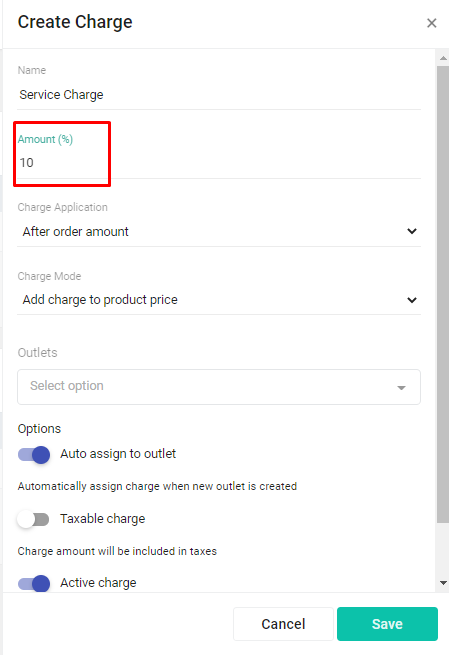
Step 4: Enter the Charge Amount
Under Amount, enter the desired charge percentage (e.g., 10 for a 10% charge).
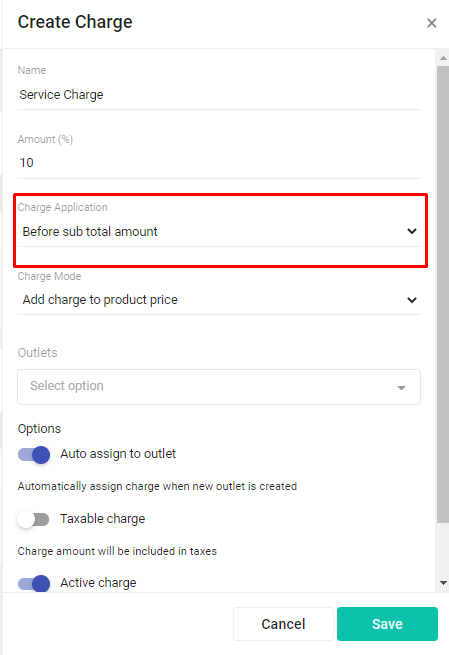
Step 5: Select the Charge Application
Under Charge Application, select one of the following options:
Before final amount
After order amount
Before sub total amount
Step 6: Select the Charge Mode
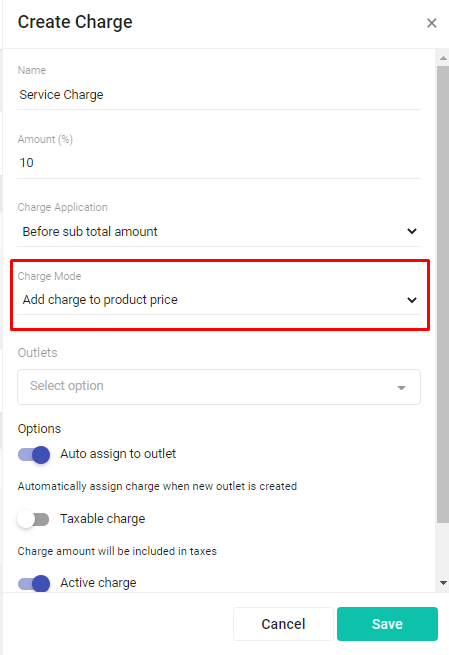
Under Charge Mode, choose one of the following options:
Include charge in product price
Add charge to product price
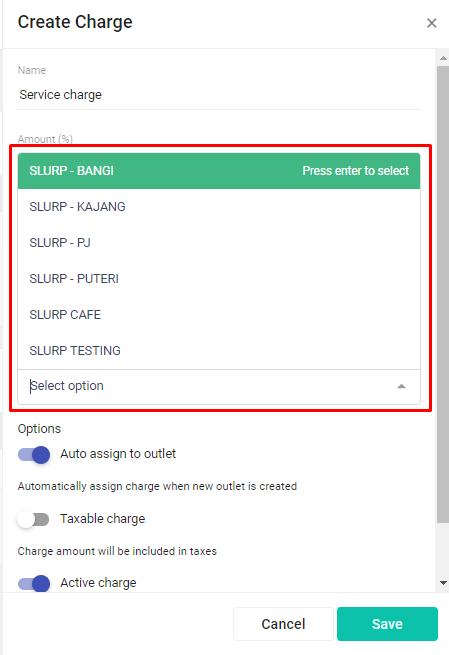
Step 7: Select the Outlet(s)
Under Outlets, select the outlet or outlets where the charge should apply.
Step 8: Save the Charge
Click Save to create the charge.
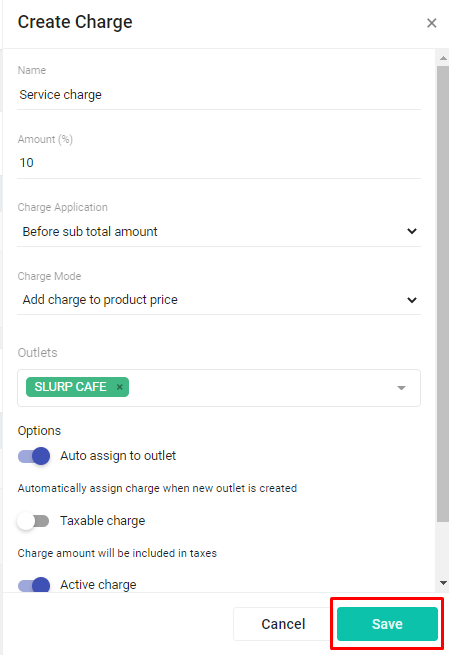
Done! Your charge has been created.